
Create API keys
Create the keys that let software you build, like your backend or mobile app, talk to your agents and keep your workspace in step with your own systems.
The API channel is for teams with a developer. Your backend, mobile app, or booking system sends a customer's message to a Careflow agent and gets the reply back. You own the screens your customers see. Careflow runs the agent behind them, with the same persona, knowledge, playbooks, and tools as every other channel.
The same keys can do more than send messages, if you let them. A key can also update your agents, keep their knowledge current, read your analytics, and manage tools, variables and integrations. You choose what each key can do when you create it.
Access works through API keys. A key belongs to the workspace, not to one agent, so your developer names the agent in each request. You need the Manager role to do this, and a developer on your side to send the requests. For example, a hotel group with its own booking app could give the app's developer a key so guests chat with the agent inside the app.
Create a key
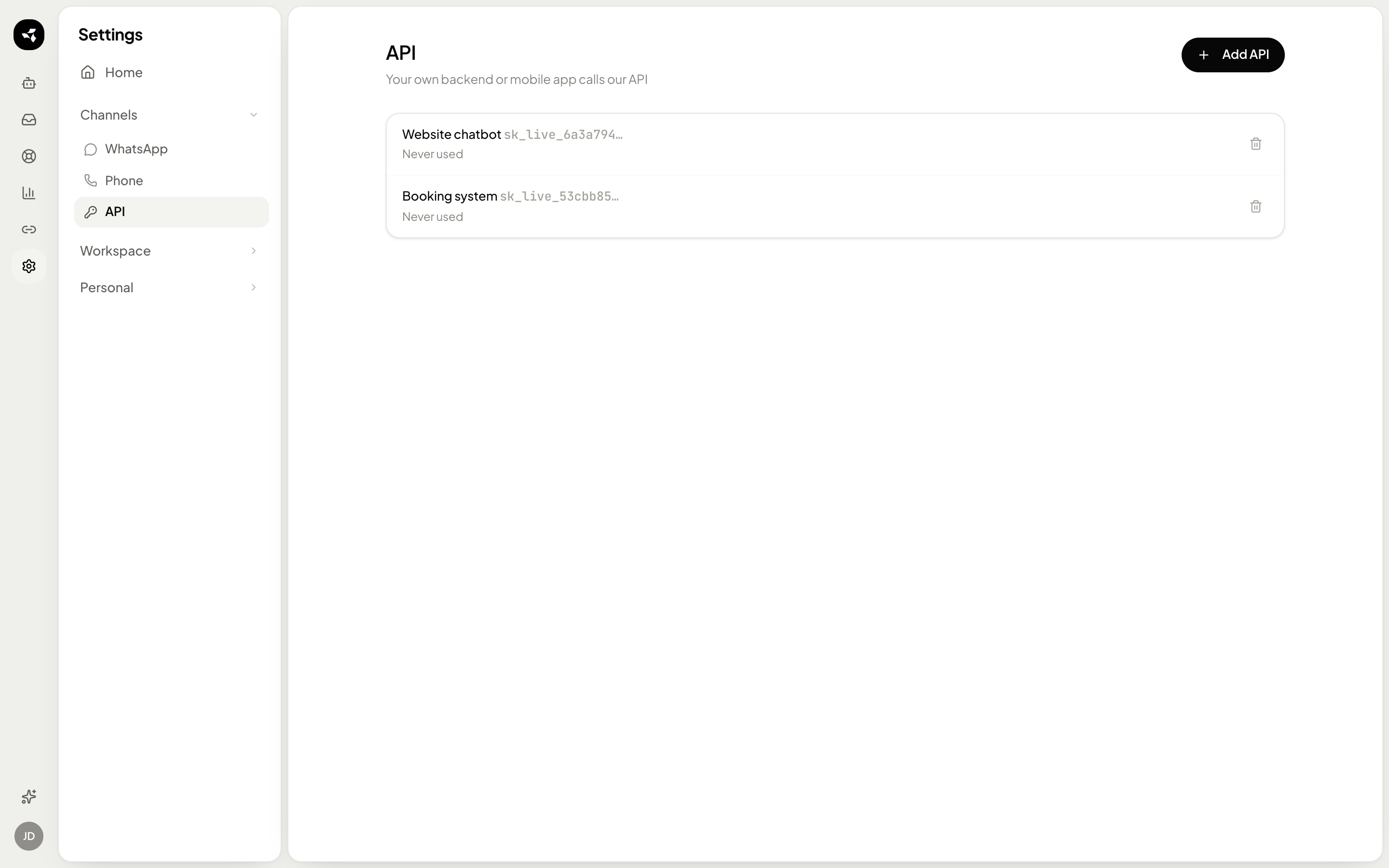
- Go to SettingsChannelsAPI.
- Choose Add API. The Create an API key dialog opens.
- Enter a Key name that says what uses it, for example "Mobile app backend".
- Under What this key can do, choose a level for each area. See below.
- Choose Create key.
- Copy the key with Copy and store it somewhere safe.
- Choose Copy curl to copy a ready-made test request, and hand it to your developer with the key.
- Choose Done.
The test request sends "Hello!" to an agent. Your developer swaps in the agent's ID, which is in the address bar when you open the agent. Careflow keeps only a hash of the key, so you can't see it again after you close the dialog. Copy it before you choose Done. If it's lost, create a new key and revoke the old one.
Choose what a key can do
Each area has its own setting: No access, Read, or Read & write. Conversations has Send instead, and Analytics can only be read. A new key starts with Send for Conversations and nothing else, which is all a chat app needs.
Give each key only what the software using it needs. A reporting job needs Read on Analytics. A system that uploads your latest policies needs Read & write on Knowledge. Within those areas a key can do what a Manager can, so keep Read & write for the keys that need it.
To change a key later, open it, change the levels under What this key can do, and choose Save access. The change applies to the key's next request. Keys created before you could choose can only send messages until you change them.
Check your keys
- Go to SettingsChannelsAPI.
- Read each row: the key's name, the first characters of the key, what it can do, and Last used with a date, or Never used.
- Choose a key to see when it was created and last used, and what it can do.
A key marked Never used hasn't made a request yet, which is a quick way to confirm your developer hasn't wired it up, or that an old key can go.
Revoke a key
- Go to SettingsChannelsAPI.
- Open the key and choose Revoke, or choose the bin icon on its row.
Revoking asks you to confirm, and then you land back on SettingsChannelsAPI. Requests that use the key start failing at once. Rotate keys at a quiet time, with the new key already in place. Create the new key, give it to your developer, and revoke the old one once the app uses the new one.
Name each key for the app or service that uses it. When one leaks, you can revoke just that key. Revoke keys nobody recognizes, and keys marked Never used that nothing needs.
What happens next
A key can reach any agent in the workspace, and the request says which one. Conversations land in the Inbox, so your team sees API conversations next to calls and chats. See Inbox overview. Changes a key makes, such as publishing an agent, show in the audit log under API key: and the key's name.
Send your developer to the developer docs. Authentication covers how to send the key. Make your first request walks through a first conversation. The full list of endpoints is in the API Reference.
FAQs
Is a key tied to one agent?
No. A key belongs to the workspace, and the request names the agent.
Can I see a key again after I close the dialog?
No. Careflow keeps only a hash, so create a new key and revoke the old one.
Who can create or revoke keys?
Managers. Only Managers can change what a key can do, too. See Roles and permissions.
Can a key change my agents?
Only if you give it Read & write on Agents. A key with Send on Conversations alone can talk to your agents but can't change them.
Where do API conversations show up?
In the Inbox, next to your calls and chats.
Related
- Make your first request: the developer walkthrough.
- Authentication: how requests use the key.
- Rotate an API key: swap a key without downtime.
- Channels overview: every channel and where it lives.