
Add the web widget
Put a chat widget on your website so visitors can talk to your agent, then style it and choose what it shows.
The web widget is a chat window on your site. Visitors open it from a button in the corner and chat with your agent. It has a Home screen, a Messages screen, and an optional Help tab with pages from your knowledge. Each agent has one widget, which you create and style from the agent, under DeployWeb.
You need the Manager role to create or change a widget. Members see the editor read-only. You also need access to your website's HTML to paste the install snippet. Picture a boutique hotel adding the widget so guests can ask about parking and check-in times before they arrive.
Create and install the widget
- Go to Agents, choose your agent, then open DeployWeb.
- Choose Create web widget. There's no form. The widget is named after the agent and the editor opens.
- Open the Install tab. It prompts you to add your website. Under Allowed website origins, add each site where you'll embed the widget, one per line, for example
https://clinic.example.com. - Style the widget in the other tabs. The Live preview on the right shows Home and Conversation as you go.
- On Install, choose Copy snippet and paste it before the closing
</body>tag on every page where the widget should appear. - Open your site and check the button appears.
Changes save on their own. The top of the editor shows Saving…, then Saved. Your site picks up the new look the next time a page loads, so you never paste the snippet again. You can create and edit the widget before you add a website. With no website on its list, it answers nowhere, and it only appears on the sites in that list.
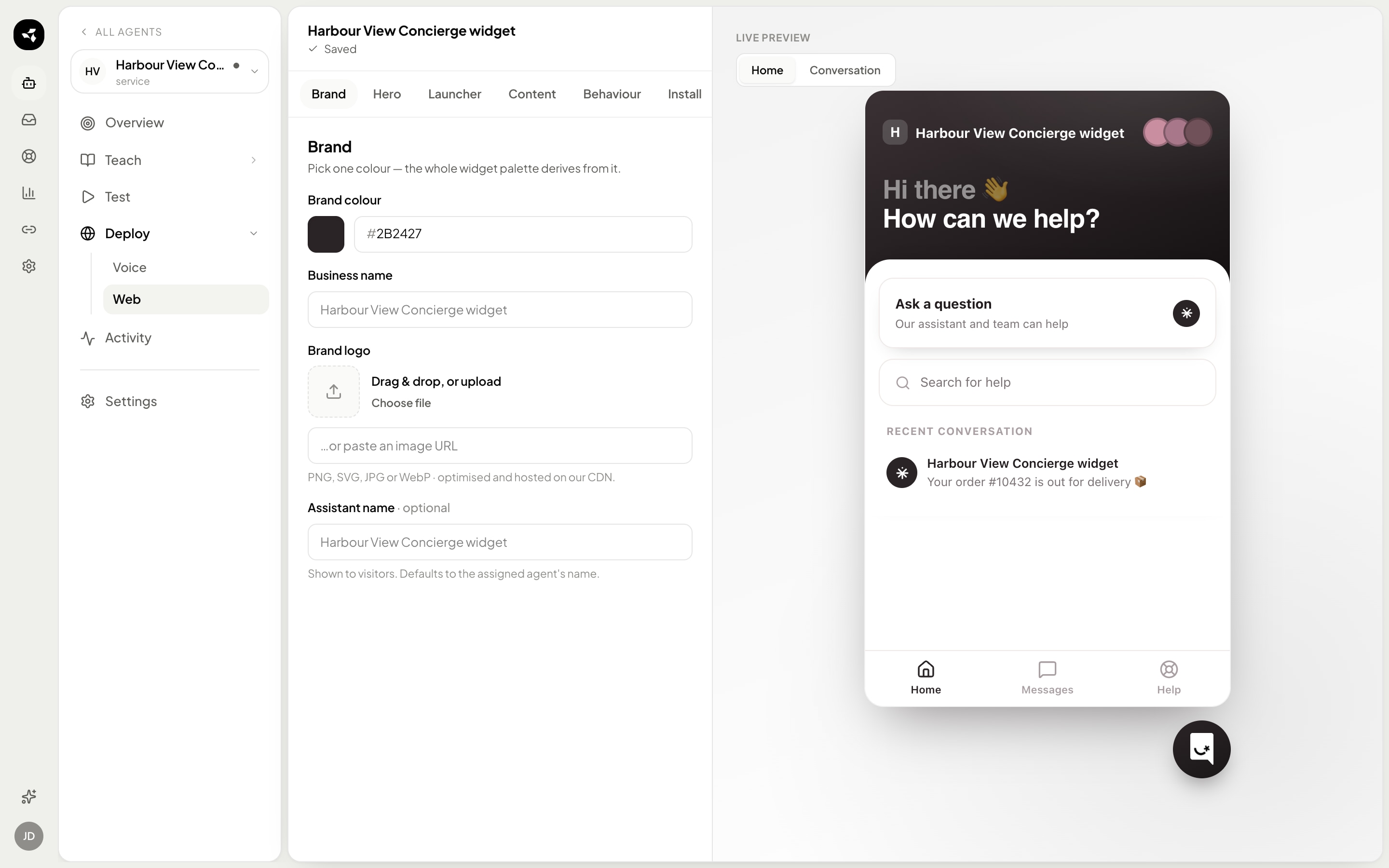
Style the widget
- Go to Agentsyour agentDeployWeb, then open the tab you want to change.
The editor has six tabs. Logos and hero images can be PNG, SVG, JPG, or WebP, up to 5 MB, or you can paste an image URL that starts with https:// or http://.
Brand sets the Brand colour, which the whole palette comes from, plus your Business name, Brand logo, and an optional Assistant name shown to visitors. Hero is the greeting at the top of Home: choose a Background (Default, Brand, or Image, with a Hero image), then set the Greeting and optional Subtext.
Launcher is the button that opens the widget. Choose its Style (Custom bubble or Icon), the Icon and an optional Label, and its Position (Right or Left). Content controls the Help tab, Recent conversation on Home, "Search for help" on Home, and which Help articles are public. Behaviour and Install are covered below.
Watch the Live preview as you change each tab. It shows what visitors will see, so you can check your colour and logo before anyone else does.
Choose what's public in Help
- Go to Agentsyour agentDeployWebContent.
- Leave Help tab on.
- Under Help articles, switch on each knowledge source you want visitors to read.
The Help tab shows these sources to anyone on your site, so nothing is public until you switch it on. The list shows the knowledge sources this agent can use. A source published to help shows in the Help tab of every widget whose agent can use that source.
Visitors can read the whole source in Help, so switch on only sources written for customers. A hotel might share its guest guide and leave its staff procedures and price negotiation notes off. See Knowledge overview.
Set behaviour
- Go to Agentsyour agentDeployWebBehaviour.
- Switch Human handoff, Remember returning visitors, and AI disclaimer on or off.
With Human handoff on, visitors see Talk to a human, which follows the agent's handoffs. Off, there is no Talk to a human link. See Handoffs overview.
With Remember returning visitors on, visitors keep their history across visits, in their own browser. Off, each visit starts fresh. With AI disclaimer on, "AI can make mistakes" shows under the message box. Off, there is no disclaimer.
Turn the widget off or remove it
- To pause it, switch Widget on off. It stops loading and answering on your site, and you can switch it back on later.
- To stop it on one site but keep it on others, go to Agentsyour agentDeployWebInstall and remove that site from Allowed website origins.
- To delete it, choose Remove widget and confirm. You can create a new widget afterwards.
Removing the snippet from your pages also makes the widget disappear the next time each page loads.
Only published agents answer in the widget. For an unpublished agent, the widget says chat is unavailable, and widget voice needs a published agent too. See Publish and go live.
FAQs
Can I have more than one widget for an agent?
No. Each agent has one widget. To give a different site a different look, use a different agent.
Do I need to paste the snippet again after I change the style?
No. Changes save on their own and your site picks them up the next time a page loads.
Does the widget show formatting?
Yes. Replies keep the agent's bold text, lists and links.
Where do website chats appear for my team?
In the Inbox, next to your calls and other chats. See Inbox overview.
Why isn't the widget showing on my site?
Check that the Widget on switch is on, that the agent is published, that the site is listed under Allowed website origins on Install, and that the snippet sits before the closing </body> tag on that page.
Related
- Embed the web widget: the developer walkthrough.
- Knowledge overview: add the sources your Help tab can show.
- Inbox overview: work website chats with your team.
- Channels overview: every channel and where it lives.