
Roles and permissions
See what Members, Managers and Owners can do, and give each teammate the right access.
Careflow has three roles. Members build: agents, playbooks, knowledge, tools and handoffs, and they work the Inbox. Managers run the workspace: team, billing, channels, numbers and security. The Owner is whoever created the workspace.
Think of a small clinic. The clinic's operations lead might be a Manager, who connects the phone number and handles billing. The receptionist who knows the patients' questions best might be a Member, who writes the agent's knowledge and playbooks and covers escalations. Neither needs more access than their job asks for.
What each role can do
Members don't see the Manager-only sections of Settings. If a Member tries a Manager action another way, Careflow says Only a Manager can do this.
| Job | Member | Manager | Owner |
|---|---|---|---|
| Create, edit, publish and delete agents, playbooks, knowledge, tools and handoffs | Yes | Yes | Yes |
| Variables, workflows and automations | Yes | Yes | Yes |
| Test agents, work the Inbox, claim, assign and resolve escalations | Yes | Yes | Yes |
| Invite and remove teammates, change someone between Member and Manager | No | Yes | Yes |
| Billing and plan changes | No | Yes | Yes |
| Business settings (SettingsWorkspaceGeneral) | No | Yes | Yes |
| Channels and integrations: WhatsApp, web widget, API, Google, HubSpot, Slack | No | Yes | Yes |
| Buy, import and route phone numbers | No | Yes | Yes |
| API keys, API secrets and audit logs | No | Yes | Yes |
| Conversation retention | No | Yes | Yes |
| Delete phone numbers | No | No | Yes |
| Privacy admin (export or delete data for others) and deleting the workspace | No | No | Yes |
Managers can do everything a Member can. The Owner can do everything a Manager can, plus the last two rows.
Choose between Manager and Member
Give someone Manager when they manage the team or billing, connect channels, integrations or phone numbers, or handle API keys, secrets or audit reviews.
Keep them a Member when they build and tune agents, write playbooks, knowledge and tools, or cover the Inbox and escalations.
If you are unsure, start someone as a Member. A Manager can promote them the moment they need to connect a number or change a plan.
Set a teammate's role
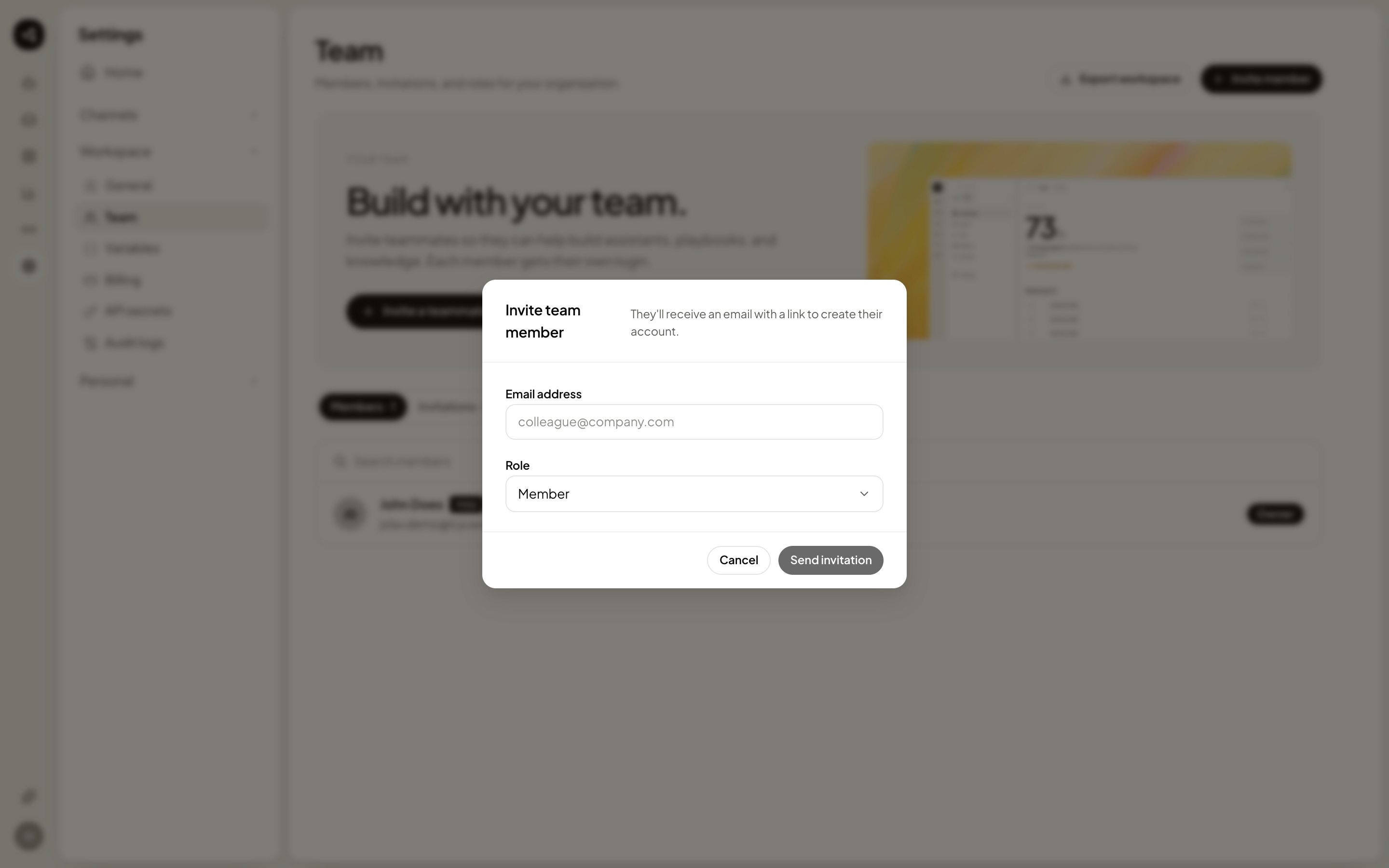
A Manager invites the teammate from SettingsWorkspaceTeam and picks Member or Manager in the invite. See Invite your team. To change it later, a Manager opens the person's row menu and chooses Change role. Changing someone's role signs them out, and they get the new role when they sign back in.
The Owner can't change hands
The Owner is whoever created the workspace (see Create your workspace). The role can't be given to anyone else, and the Owner can't be removed or demoted.
Changes are audited
Publishing agents, playbook changes, phone number changes and team changes are recorded in Audit logs, which Managers can read under SettingsWorkspaceAudit logs.
Where to go next
- Invite your team: add teammates and change roles.
- Billing: plans and payment, for Managers.
- Security and privacy: sign-in protection and data rights.