
Publish and go live
Switch an agent on with Publish, and know which changes reach customers the moment you save.
An agent has one live copy and no agent draft. Publishing switches the agent on so it answers on every channel: phone calls, the website chat widget, including widget voice, and WhatsApp. After that, every saved change reaches its next conversation. Calls already in progress are not affected.
Playbooks work differently. A playbook keeps a draft until you publish it, keeps its earlier versions and can be rolled back. See Publish and versions.
Know when changes reach customers
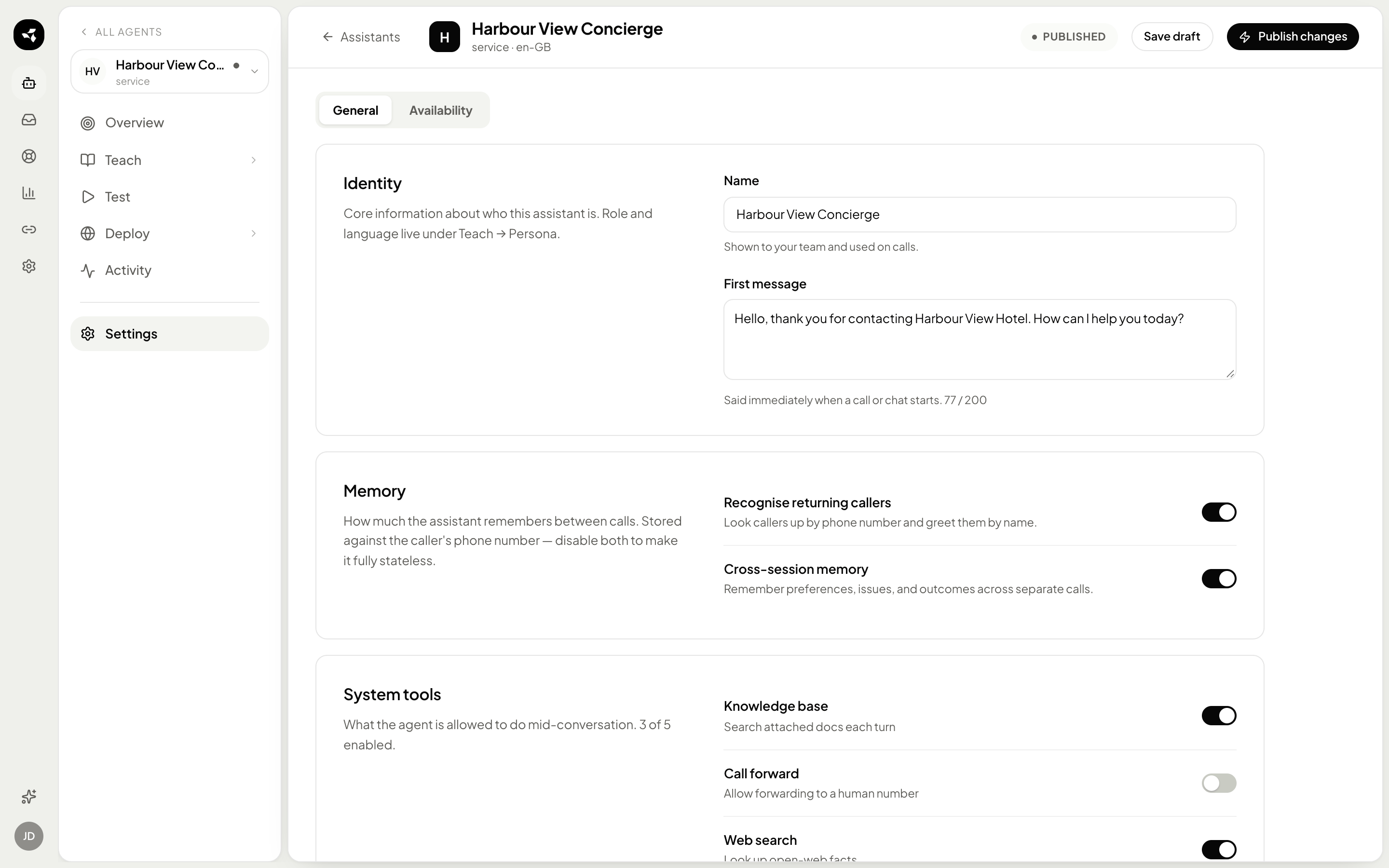
Most changes reach a live agent as soon as you save them. Name, memory, system tools and availability in Settings do. So do tone, role, greeting, rules and delivery in TeachPersona, and voice, talking speed and creativity under DeployVoicevoice settings.
The exception is a playbook in TeachPlaybooks. It reaches a live agent only when you publish that playbook.
Switch an agent on
Follow these steps the first time you take an agent live. Our example is a hotel front desk agent.
- Go to Agents, choose your agent, then open Test. Try the conversations you care about most, such as a guest asking about late check-out.
- Open DeployVoice and point a phone number at the agent, or open DeployWeb to set up the website widget.
- Open Settings and select Publish in the header.
The status changes from Draft to Published, and the Agents list shows Live. Once the agent is live, the button reads Publish changes. It saves what is on the Settings page. You do not need it for changes saved elsewhere, since those are already live. See Buy a number, Route a number to an agent and Add the web widget.
An unpublished agent does not answer. Calls to its number are refused, the website widget shows "Chat is unavailable right now", and WhatsApp messages get no reply. Testing in the dashboard works either way: the Test tab, the preview chat and browser test calls.
Change a live agent safely
Because saves are live, test first and save second.
- Go to Agents, choose your agent, then open Test and try the new behaviour.
- Open Settings or Teach and make the change, then save.
- Open Activity and read a few conversations afterwards.
Save now when you fixed a wrong fact or a typo in the greeting, when you tried the new behaviour in Test and it holds up, or when it is a small wording or tone change. Wait when the change rewrites how calls go and it is a busy hour, when you have not tried the new wording in Test yet, or when you are changing several things at once.
Make big changes in quiet hours, one at a time. If something goes wrong, change the setting back and save.
Take an agent off a channel
There is no unpublish button. To stop an agent answering, remove it from each channel it uses.
- For phone, go to Agents, choose your agent, then open DeployVoiceSet (agent name) live and select Release on the number. The number stays in your workspace.
- For your website, take the widget code off your site. See Add the web widget.
- For WhatsApp, go to SettingsChannelsWhatsApp and change the assignment. See Connect WhatsApp.
To remove the agent for good, use Delete assistant in Settings. Its numbers are unassigned and stay in your workspace, its widget and WhatsApp links are removed, and past conversations stay in the Inbox. See Change agent settings.
FAQs
Can I unpublish an agent?
There is no unpublish button. Release its numbers, remove the widget and change its WhatsApp assignment so no channel reaches it.
Does saving a change interrupt a call in progress?
No. Calls already in progress are not affected. The change applies from the next conversation.
What does Publish changes do on a live agent?
It saves what is on the Settings page. You do not need it for changes saved elsewhere, since those are already live.
Why are calls to my number refused?
The number points at an unpublished agent. Publish the agent and calls connect. The same goes for the website widget and WhatsApp: both stay silent until the agent is published.