
Create a handoff routine
Write a routine that says what happens when an agent steps aside, then attach it to the agents that need it.
A routine is your escalation policy, written down once for the workspace. It has a name, a description the agent reads, a plan for calls, a plan for chat and WhatsApp, and the fields to collect first. You attach it to agents separately, and each agent gets its own trigger phrases.
Members and Managers can write routines. Saving a routine is live: agents that use it pick up the change on their next conversation. A Run a workflow step needs an existing workflow, and a Forward the call step needs the phone number of the person or line that should answer.
Create a routine
- Go to Handoffs in the sidebar and switch to the Routines tab.
- Choose New routine, then pick a starting shape. The steps are filled in for you.
- Type a name, such as "Front desk escalation".
- Under the name, describe when the agent should use it, for example "billing disputes, refund requests".
- Adjust the steps on the On calls and On chat & WhatsApp tabs, and add any fields on the Collected fields tab.
- Choose Create routine.
The agent reads the description to decide when to hand off, so write it as a request a customer might make. When you edit later, the button reads Save changes. If something is missing, the editor shows what to fix and opens the tab that needs it.
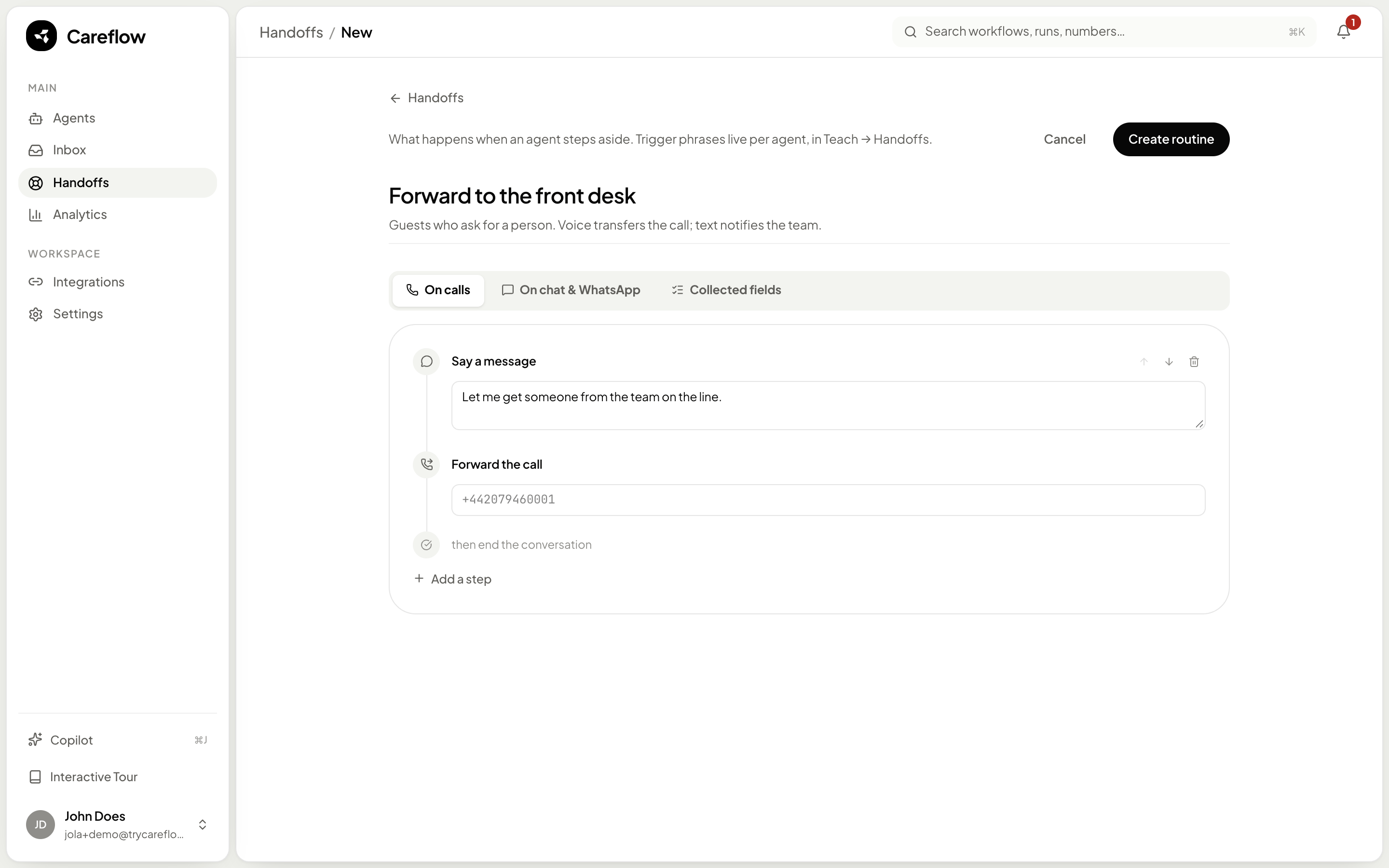
Choose a starting shape
A starting shape fills in both plans. Every shape still opens an escalation in the queue when it runs.
- Forward the call: on calls, says a line, then transfers to a person. On chat and WhatsApp, says a line, then emails the team.
- Notify the team: says a line, then emails the team, on both.
- Run a workflow: says a line, then runs a workflow, on both.
- End politely: says a closing line and ends the conversation, without adding anything to the queue.
For a clinic's front desk, Forward the call is a natural start: the caller hears a short line, then the call rings through to reception.
Add and order steps
- On the On calls or On chat & WhatsApp tab, choose Add a step.
- Pick the step and fill it in.
- Use the arrows to reorder steps.
The steps you can add are these. Say a message takes the text to say, on calls and chat. Forward the call takes a number in international format, like +442079460001, and works on calls only. Notify the team takes Email and an address, or SMS and an international number, on both. Run a workflow takes the workflow to run, on both. Capture contact works on chat and WhatsApp and asks for a name and callback number.
Every plan ends the conversation after its last step, so you never add an end step yourself. A plan made only of Say a message steps closes the conversation politely and doesn't open an escalation. Any other step, or no steps at all, opens one in the Handoffs queue. On chat and WhatsApp, the customer reads the routine's message. With Capture contact, the agent then asks for their name and the best number or email to reach them, and their answer stays in the thread for your team.
Collect details first
- Open the Collected fields tab.
- Choose + Add a field.
- Enter a short name, such as
account_number, and what to ask the customer for. - Leave required on if the agent must collect it before escalating. Turn it off for nice-to-have details.
Fields appear in the notification, the workflow and the escalation queue, so your team doesn't ask again. The agent always records a reason, so you don't need a field for that.
Attach the routine to an agent
- Go to Agents, choose your agent, then open TeachHandoffs.
- Choose Attach handoff and pick the routine.
- In Trigger phrases, type a phrase a customer might say and press Enter or choose Add. Add a few.
Each change saves as you make it. Trigger phrases belong to this agent only, so the same routine can have different phrases on another. With no phrases, the attachment shows No triggers and the agent decides from the description. To open Trigger phrases again later, choose Add triggers, or the trigger count, on the routine's row.
Strong triggers read like real requests: "let me talk to a person", "can I speak to someone", "get me the front desk". A single word like "human" is weak.
To change the routine itself, choose Edit in library under the trigger phrases. To detach it, use the bin icon. The routine stays in the workspace.
Turn a routine off
The Routines tab lists every routine with its steps, how many agents use it, and an Active switch. Turn Active off to stop agents using the routine. It stays attached to its agents and shows Disabled, and turning it back on restores it. You can also delete it with the bin icon, and the dialog lists every agent that depends on it.
An agent whose routine is deleted has nowhere to escalate, and its Handoffs page shows "This handoff's routine was deleted" until you remove the attachment. Past escalations keep the routine's name. Turning a routine off is usually the better choice.
Try it
Use the chat on the agent's Test page to check the agent offers the handoff when it should. Test calls and the chat preview never create a real handoff. Nothing appears in Handoffs and nobody is notified.
FAQs
Do I have to add trigger phrases?
No. Without them the attachment shows No triggers and the agent decides from the description alone. Phrases make the handoff more reliable.
Can one routine serve several agents?
Yes. Attach it to each agent, and give each its own trigger phrases.
Do changes apply to conversations already in progress?
Saving is live, and agents pick up the change on their next conversation.
What happens if I delete a routine an agent uses?
The agent has nowhere to escalate. Turn Active off instead, or detach it first.