
Add documents, Q&As and notes
Add your first content from an agent's Teach → Knowledge page or from the workspace Knowledge page.
An agent's knowledge is a list of sources. Each source is a document, a website, or a group of Q&A snippets or notes. This page covers the ways to add one: uploading documents, and typing Q&As and notes by hand. To sync a website, see Sync a website.
Pick the right type
Match the content to the type.
- A longer policy, price list or handbook: a Document.
- One question with one exact answer ("Do you take walk-ins?"): a Q&A snippet.
- Short facts in your own words (hours, parking, insurers): a Note.
- Pages that change on your site: a Website sync.
If you have no agent yet, start with Create an agent.
Add a Q&A snippet or a note
A Q&A is best when the wording must stay fixed. A note is best for a few related facts.
- Go to Agents, then select your agent to open its console.
- Open Teach, then Knowledge.
- Under Add knowledge, select the Q&A snippet or Note tile.
- For a Q&A, write the question as the title and the exact answer the agent should give as the body.
- For a note, give it a short title and write the facts in plain sentences.
- Select Save.
The entry appears under Sources as Processing, then turns Live when the agent can use it.
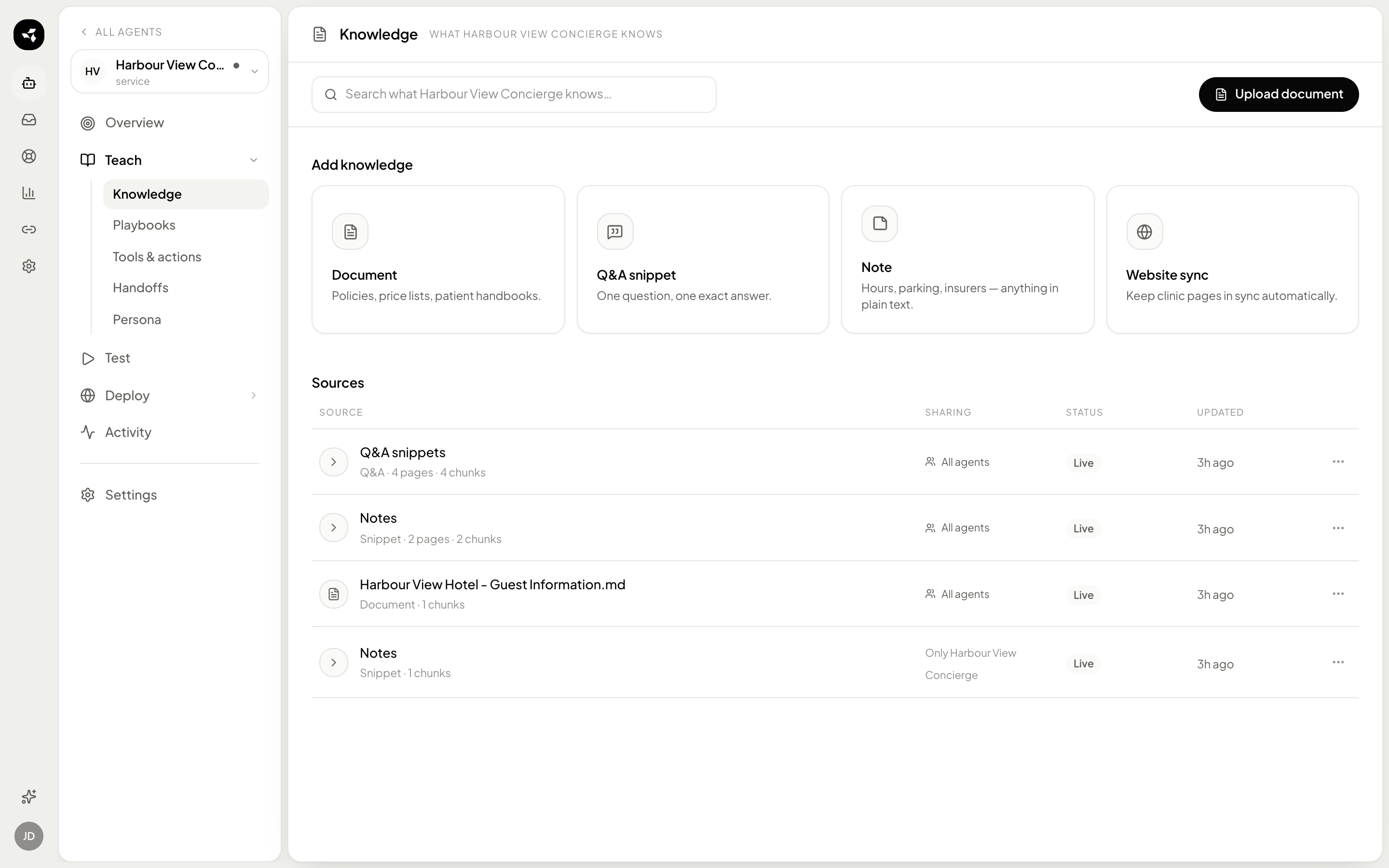
Q&A snippets are grouped into one Q&A snippets source, and notes into one Notes source. Expand the row to see every entry, open one to edit it, or select Add a Q&A or Add a note at the bottom of the group.
For example, a clinic might add the Q&A "Do you take walk-ins?" with the answer "Yes, on weekdays before noon. Otherwise please book a slot." It might also add a note called "Parking" with two sentences about the car park behind the building.
Anything you add in TeachKnowledge starts out private to that agent. The editor says so: only that agent can use it. To share it, see Share knowledge across agents.
Upload documents
Uploads give your agents reference material to answer from: policies, price lists, brochures, handbooks. Each file becomes its own source. Careflow pulls out the text, splits it into passages, and prepares them for search.
- Go to Agents, select your agent, then open Teach, then Knowledge.
- Select Upload document, or the Document tile under Add knowledge.
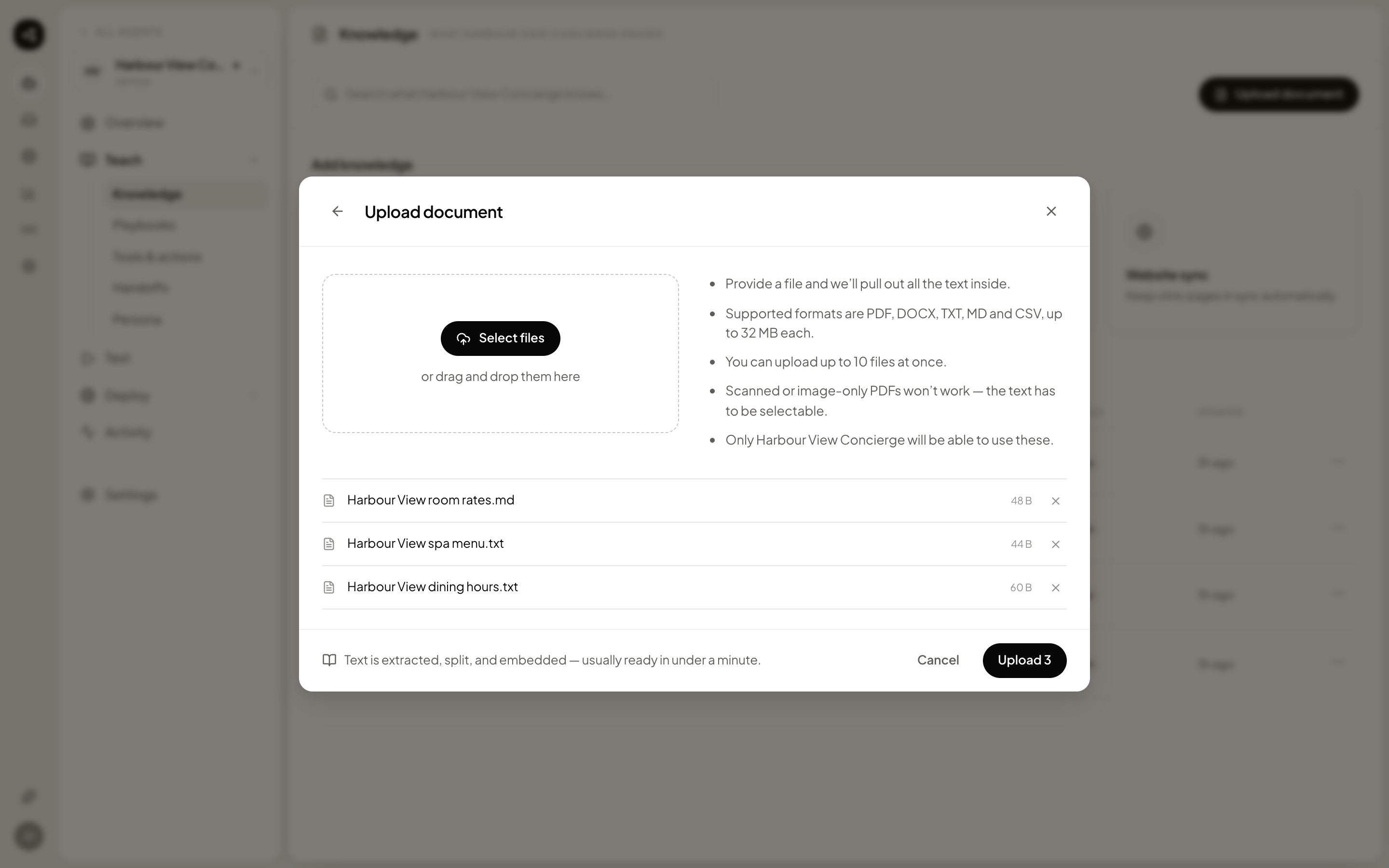
- Select Select files, or drag and drop files into the dialog.
- Remove any file you do not want with the × next to it.
- Select Upload. The button shows how many files are ready, for example Upload 3.
Each file gets a tick when it is uploaded. Files that are the wrong type, over 32 MB, or past the tenth are listed with the reason and skipped.
What you can upload:
- Formats: PDF, DOCX, TXT, MD and CSV.
- Size: up to 32 MB per file.
- Files per upload: up to 10.
- Scanned PDFs: the text has to be selectable. An image-only scan has no text to read.
The dialog tells you who can use the files before you upload. From TeachKnowledge it says only that agent will be able to use them. From the workspace page it says every agent will be able to use them, and you can choose agents from the source menu afterwards.
Add content from the workspace page
You can also add content without opening an agent.
- Open Knowledge in the main sidebar.
- Select Upload document or Sync a website.
Content added here is shared with every agent from the start. You can narrow it with Choose agents afterwards. Q&A snippets and notes are added from an agent's TeachKnowledge only.
Follow processing
A new source shows Processing while Careflow reads it. It is usually Live in under a minute. Agents that can use it answer from it straight away, and there is nothing to republish.
If a file ends up Failed:
- Open the source's row menu and select Retry processing, or open the file and select Retry.
- If it fails again, open the file and look under Last error in Details.
- Check the file has selectable text. Export the original as a text PDF or DOCX and upload it again.
A file stuck in Processing for more than 10 minutes also offers Retry. For more on this, see Keep knowledge up to date.
Upload the original, not a photo of it. Clean text files go live faster and give better answers than scans.
FAQs
Can I add several files at once?
Yes. You can select up to 10 files in one upload and remove any you do not want before you select Upload.
Where do Q&As and notes go?
Q&A snippets are grouped into one Q&A snippets source and notes into one Notes source. Expand the row to see each entry.
Can other agents use what I add?
Content added in TeachKnowledge starts private to that agent. Content added on the workspace page is shared with every agent. See Share knowledge across agents.
How do I know it worked?
The source turns Live. Then run a test search to see the passages it produced, see Test what your agent finds.