
Keep knowledge up to date
Preview what Careflow read, fix entries, reprocess or retry files, resync websites, and delete what is stale.
A source holds documents: one per uploaded file, one per crawled page, one per Q&A or note. Open any document to see exactly what your agents can find in it. This page covers looking after documents once they exist.
Find and open a document
How you open a document depends on the source type.
- Uploaded file: select the row, or choose View chunks and preview in its row menu.
- Website sync: expand the row to list the crawled pages, then select a page.
- Q&A snippets or Notes: expand the row to list the entries, then select one.
On the workspace Knowledge page you can also search sources by name and filter by status: All, Live, Processing or Failed.
Read the document panel
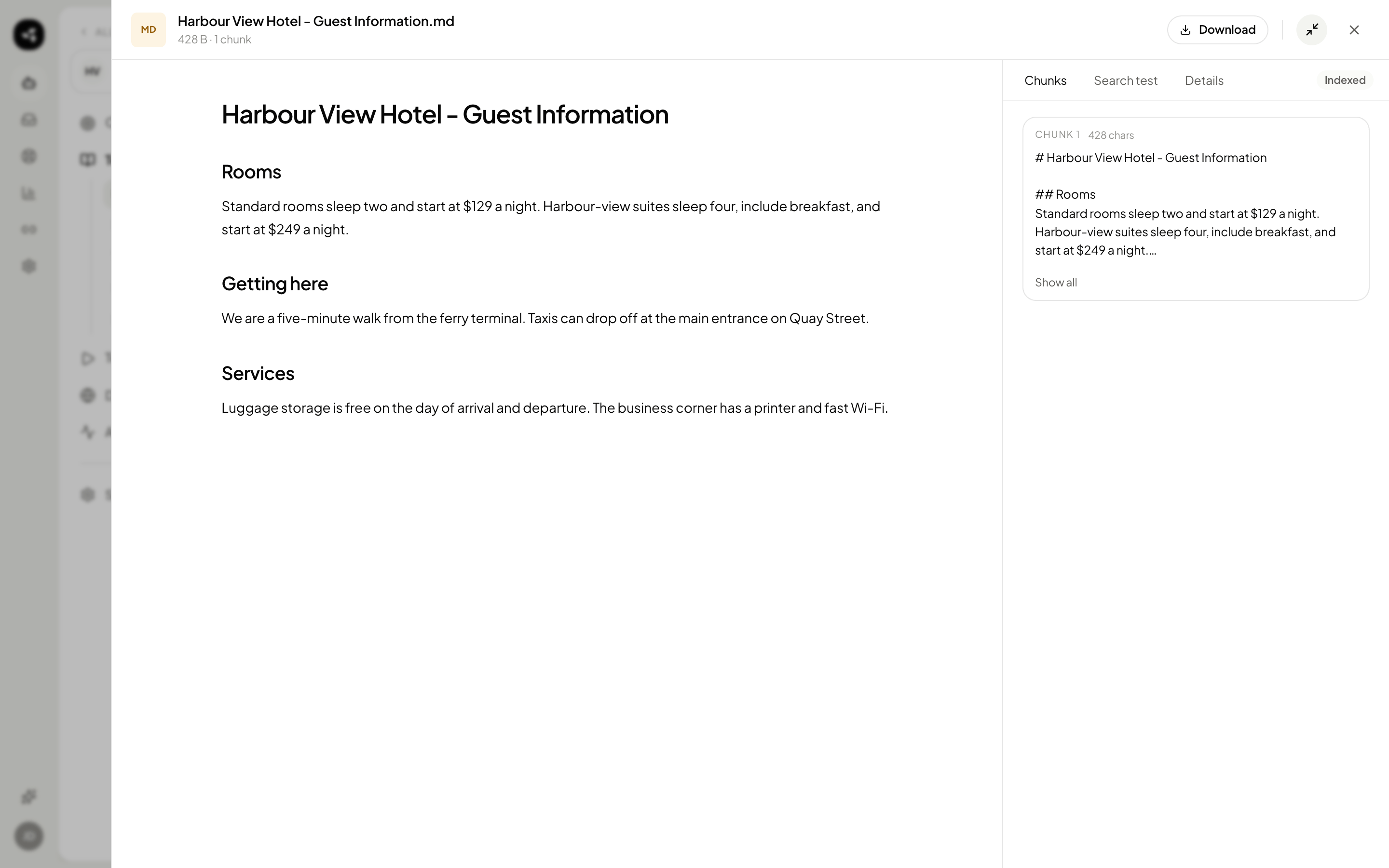
Uploaded files and crawled pages open in a side panel. Its header shows the name, the size or Web page, and the number of chunks. It has three tabs.
- Chunks. The passages Careflow split the document into. These are what agents search.
- Search test. Ask a question and see which chunks of this document match, best first. See Test what your agent finds.
- Details. The file or page, its status and chunk count, Sharing, and for crawled pages the Website sync settings and last crawl.
Select the expand icon (Show document) to see the formatted text Careflow read, side by side with the tabs. Headings, lists and tables keep their formatting. If something is missing here, agents cannot find it either.
In the header, Download gets the original file. For a crawled page, Open page opens the live page on your site.
Update a document
- Q&A or note: in TeachKnowledge, expand the group, open the entry, edit the title or body, and select Save.
- Crawled page: edit the page on your site, then run Sync now, see Sync a website.
- Uploaded file: delete the old source and upload the corrected file.
Say the clinic changes its Saturday hours. Edit the note, or update the page on the site and run Sync now, then check the answer with a test search.
Reprocess, retry, resync or delete
Pick the action that matches what you see.
- Reprocess. On the Details tab of a Live document. Rebuilds the chunks and preview from the stored file.
- Retry. In the panel of a Failed document, or one stuck in Processing for over 10 minutes. Queues it to be read again.
- Retry processing. In the row menu of a Failed upload. Same as Retry, from the list.
- Retry failed pages. In the row menu of a Failed website sync. Retries the pages that failed. If the crawl stored no pages at all, fix the cause and select Sync now instead.
- Sync now. In the row menu of a website sync. Crawls the site again.
- Delete an entry: hover a Q&A or note entry and select the bin, or select Delete this entry in the editor. Removes that one entry. The group stays.
- Delete. In the row menu of any source. Removes the source and every document in it.
Crawled pages cannot be deleted one by one. Use Skip these paths in Sync settings to leave a page out.
A file indexed before formatted previews were added shows its text pieced back together from chunks, with a note. Select Reprocess to rebuild both.
If other agents use the source, the menu says Delete for all agents, and deleting removes it for every one of them. To take it away from one agent only, see Share knowledge across agents.
Changes apply as soon as processing finishes. If answers still look wrong, check what the agent finds, see Test what your agent finds.
FAQs
Do I need to republish after editing?
No. Changes apply as soon as the document is Live again.
Will Reprocess change my original file?
No. It rebuilds the chunks and preview from the file already stored.
Can I delete one crawled page?
Not directly. Add its path to Skip these paths in Sync settings.
What if Retry fails again?
Open the document and read the error under Details. Check the file has selectable text, then re-upload if needed.