
Connect Google
Connect Google Calendar, Gmail, and Google Sheets one at a time, each with only the access it needs.
Google Calendar, Gmail, and Google Sheets are three separate integrations in Careflow. You connect each one on its own, and each asks Google for its own access. Connect only the ones your agents need. Connecting Calendar doesn't let Careflow touch your inbox or your spreadsheets.
Each connection is shared by the whole workspace. It creates no tools, so you build tools from it afterwards. You need the Manager or Owner role to connect, reconnect, or disconnect a Google product, and a Google account that can use the calendar, inbox, or spreadsheets you want your agents to work with. A clinic, for example, might connect Calendar so its agent can check free appointment slots, and Gmail so it can send a confirmation.
What each product can do
Each product has its own tools. There is no tool for drafting an email, moving or cancelling an event, or deleting rows.
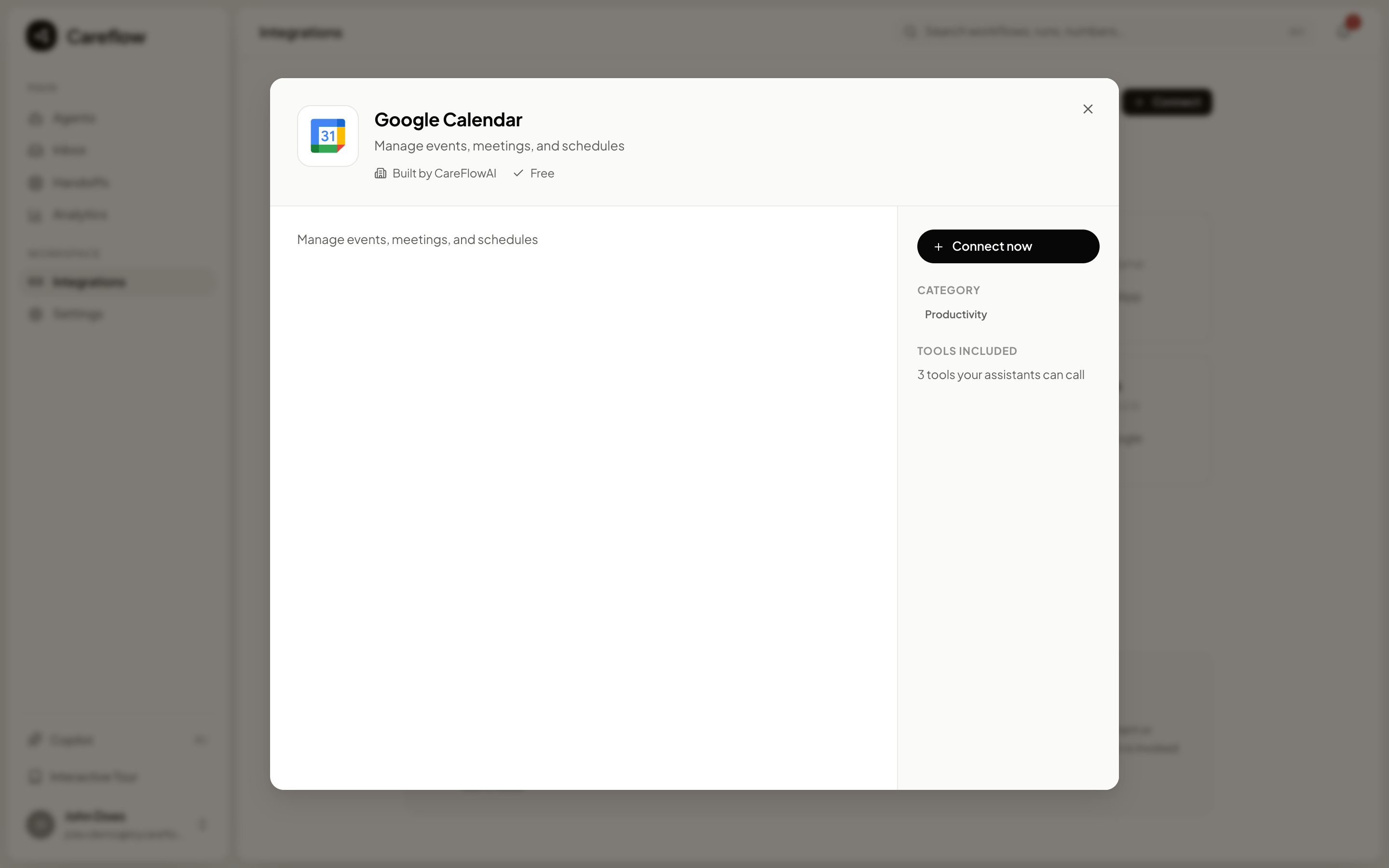
Google Calendar gives you three tools: Check Availability (busy times in a window), List Events (with an optional search), and Create Event (title, time, place, attendees). They work on the connected account's primary calendar. Careflow asks Google to see your calendars, and to view and edit events.
Gmail gives you one tool, Send Email (to, subject, body, optional cc). It sends from the connected address. Careflow asks Google to send email on your behalf, and it can't read your inbox.
Google Sheets gives you three tools: Get Values (read a range), Append Row (add a row), and Update Cell (change one cell). They need the spreadsheet ID, which is the long code in the sheet's URL, and a range like Sheet1!A1:D10. Careflow asks Google to see, edit, create, and delete your spreadsheets.
Connect a Google product
- Select Integrations in the sidebar and open the Catalog tab.
- Select Google Calendar, Gmail, or Google Sheets.
- Select Connect now. Careflow takes you to Google.
- Choose the Google account and approve the access.
- To connect another Google product, go back to the Catalog tab and repeat these steps.
Google sends you back to Integrations, where the product now appears under My integrations. You can use the same Google account for each product or a different one.
Build tools from it
- Select New tool, then choose Integration.
- Pick the Google product and the action you want.
Each tool belongs to one product, so a Calendar tool keeps working if you disconnect Gmail. See Create an integration tool.
Change or remove access
- Select Integrations in the sidebar, then the product's card under My integrations.
- Select Reconnect to go through Google's sign-in again, which is what to use when the connection stops working.
- Select Disconnect to remove only that product. Your other Google products stay connected.
You can also remove Careflow's access from your Google account's security settings. Tools for that product then fail until a Manager connects it again. See Manage connections.
If your agent only books appointments, connect Calendar and skip Gmail and Sheets. You can add the others later from the Catalog tab.
FAQs
Do I connect Calendar, Gmail, and Sheets together?
No. They are three separate connections, and each one asks Google for its own access.
Can the agent read my inbox?
No. Gmail's only tool is Send Email, and Careflow doesn't ask Google for permission to read your inbox.
Can the agent cancel or move an event?
No. Calendar tools check availability, list events, and create events.
Which calendar do the tools use?
The connected account's primary calendar.
Do my teammates need to connect Google themselves?
No. One connection is shared across the workspace.
Related
- Create an integration tool: build a Calendar, Gmail, or Sheets tool.
- Manage connections: check activity, reconnect, or disconnect.
- Connect HubSpot: keep CRM records up to date after a booking.