
Connect HubSpot
Let your agents find and update contacts, open deals, and log notes in HubSpot during a conversation.
Connecting HubSpot lets your agents look up the person they're talking to, keep their contact record current, open a deal, and leave a note on the record. One connection serves the whole workspace. The connection creates no tools, so you build each one from it afterwards.
You need the Manager or Owner role to connect, reconnect, or disconnect HubSpot, and a HubSpot user who can approve apps for the account you're connecting. Picture a clinic whose agent adds a new enquiry as a contact, then logs a note about the treatment they asked about.
What its tools can do
Every tool finds the contact by email address.
- Get Contact finds a contact and returns their details. It needs the email.
- Create Contact adds a new contact. It needs the email. First name, last name, phone, and company are optional.
- Update Contact changes an existing contact. It needs the email of the contact, plus the new first name, last name, phone, or lifecycle stage.
- Create Deal opens a deal, linked to a contact if you give one. It needs the deal name. Contact email, amount, stage, and close date are optional.
- Add Note adds a note to a contact's record. It needs the contact email and the note.
HubSpot tools can't change or close an existing deal, and they don't work with companies, tickets, or tasks.
Access Careflow asks for
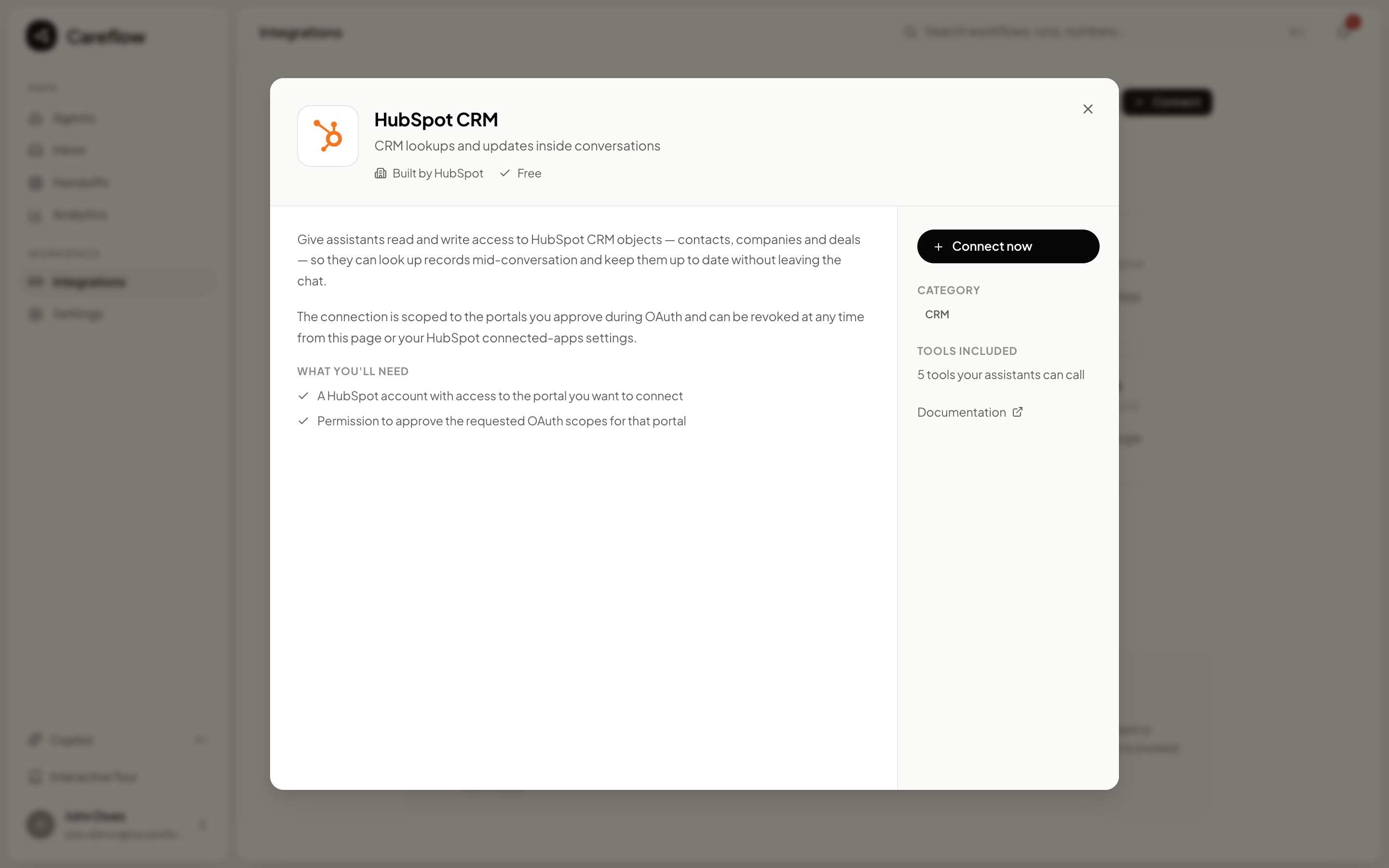
When you approve the connection, HubSpot asks you to let Careflow read and write contacts, and read and write deals. Nothing else.
Connect HubSpot
- Select Integrations in the sidebar and open the Catalog tab.
- Select HubSpot CRM, then Connect now. Careflow takes you to HubSpot.
- Sign in to HubSpot and choose the account to connect.
- Review the access and approve it.
HubSpot sends you back to Integrations, where HubSpot CRM now appears under My integrations.
Build the tools you need
- Select New tool, then choose Integration.
- Pick HubSpot CRM, then the action, such as Get Contact or Add Note.
Build only the tools your agent needs. A lookup tool and a note tool are enough for many teams. Then give the tools to an agent or a playbook. See Create an integration tool.
After you connect
- Select Integrations, then the HubSpot CRM card.
- Read Tools for the tools built from it and Used by for the agents and workflows that use those tools.
Check both before you disconnect. You can also remove Careflow from HubSpot's connected apps settings. HubSpot tools then fail until a Manager connects it again. See Manage connections.
Have the agent create a deal in HubSpot, then post a message to your team in Slack. See Connect Slack.
FAQs
How does a HubSpot tool find the right contact?
By email address. Every tool uses it to find the contact.
Can my agent close a deal?
No. HubSpot tools can create a deal, but they can't change or close an existing one.
Can it work with companies, tickets, or tasks?
No. Tools cover contacts, deals, and notes.
What access does HubSpot ask me to approve?
Read and write for contacts, and read and write for deals.
Related
- Create an integration tool: build a contact lookup or a note tool.
- Connect Slack: tell your team when a deal is created.
- Manage connections: check activity, reconnect, or disconnect.