
Connect Slack
Let your agents and workflows post messages to your team's Slack channels.
Connecting Slack adds a Careflow app to your Slack workspace. Your agents and workflows can then post where your team already works, for example a note when a customer asks for a callback or a new deal is created. One connection serves the whole Careflow workspace. The connection creates no tools, so you build each one from it afterwards.
You need the Manager or Owner role to connect, reconnect, or disconnect Slack, and permission to install apps in your Slack workspace. A hotel might post to a front-desk channel whenever a guest asks for a late checkout.
What its tools can do
- Send Message posts a message to a channel. It needs the channel and the message text.
- List Channels returns the public channels in your Slack workspace. It needs nothing.
The app can't read messages. When you approve the connection, Slack asks you to let Careflow send messages, see the list of public channels, and join public channels.
Which channels it can post in
The app joins a public channel itself the first time it posts there, so you do nothing. It can't join a private channel on its own, so invite the app to the channel in Slack first.
For the channel, use its name, like #general or general, or its ID, like C01234ABC. You find the ID at the bottom of the channel's details in Slack. A channel ID keeps working if someone renames the channel.
Connect Slack
- Select Integrations in the sidebar and open the Catalog tab.
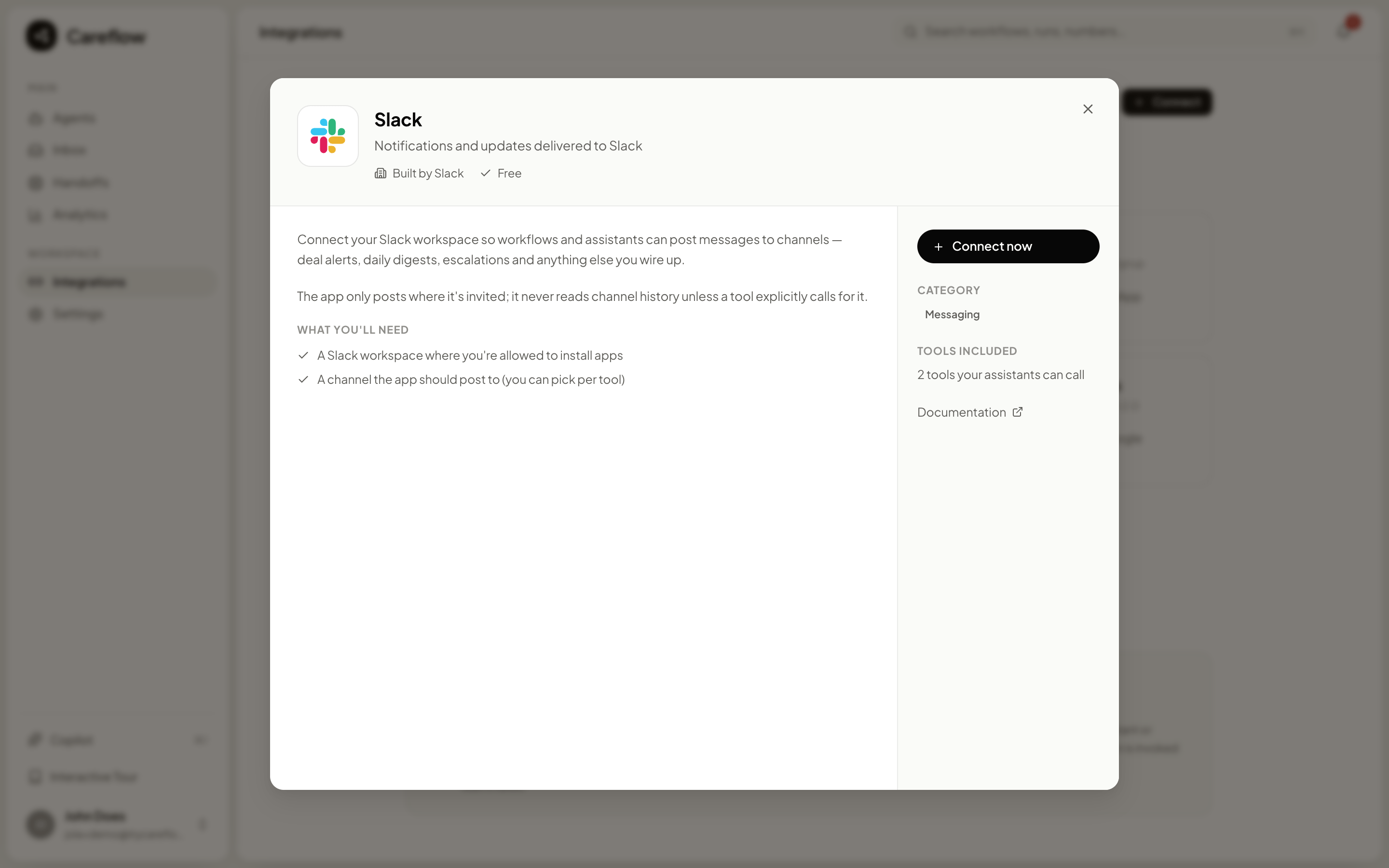
- Select Slack, then Connect now. Careflow takes you to Slack.
- Choose your Slack workspace and approve the access.
- For any private channel the app should post in, invite it to that channel in Slack.
Slack sends you back to Integrations, where Slack now appears under My integrations.
Build a Send Message tool
- Select New tool, then choose Integration.
- Pick Slack, then Send Message.
Give the tool to an agent or a playbook so it knows when to post. See Create an integration tool.
After you connect
- Select Integrations, then the Slack card.
- Read the connected Slack workspace, its activity, and every tool built from it.
If a message didn't arrive, Recent calls shows the error Slack returned. See Manage connections.
A handoff routine's Notify the team step sends an email or a text, not a Slack message. To tell Slack, use a Send Message tool. See Handoffs overview.
FAQs
Can the Slack app read my team's messages?
No. It can send messages, see the list of public channels, and join public channels.
Why didn't my message reach a private channel?
The app can't join a private channel on its own. Invite it to the channel in Slack first.
Should I use the channel name or ID?
Either works. A name like #general is easier to read. An ID like C01234ABC keeps working if someone renames the channel.
Does each teammate connect Slack themselves?
No. One connection serves the whole workspace.
Related
- Create an integration tool: build a Send Message tool.
- Handoffs overview: decide when a conversation goes to a person.
- Manage connections: check activity, reconnect, or disconnect.