
Create an integration tool
Turn an action from a connected service, like creating a HubSpot contact, into a tool your agent can call.
Connecting a service doesn't give an agent anything to do yet, because it creates no tools. You build one tool for each action you want, for example "Create contact" in HubSpot or "Post a message" in Slack. A clinic might build "Add a note" for its CRM so the agent can log what a patient asked for.
You need the Member or Manager role to build the tool. Connecting the service needs a Manager or Owner. See Roles and permissions.
Connect the service first
- Go to Integrations in the sidebar.
- Open the Catalog tab and select the service.
- Read What you'll need, then choose Connect now and approve on the service's own site.
You can build the tool without a connection, but live runs fail until the service is connected. See Integrations overview and Manage connections.
Create the tool
- Go to your agent, then TeachTools & actions.
- Choose New tool.
- Choose Integration.
- Pick the service, then the action, like Create contact.
The tool is named after the action and its inputs are filled in for you. A tool created from an agent's console is attached to that agent, and any playbook in the workspace can use it. The draft saves itself as you type, with Saving… then Saved in the header.
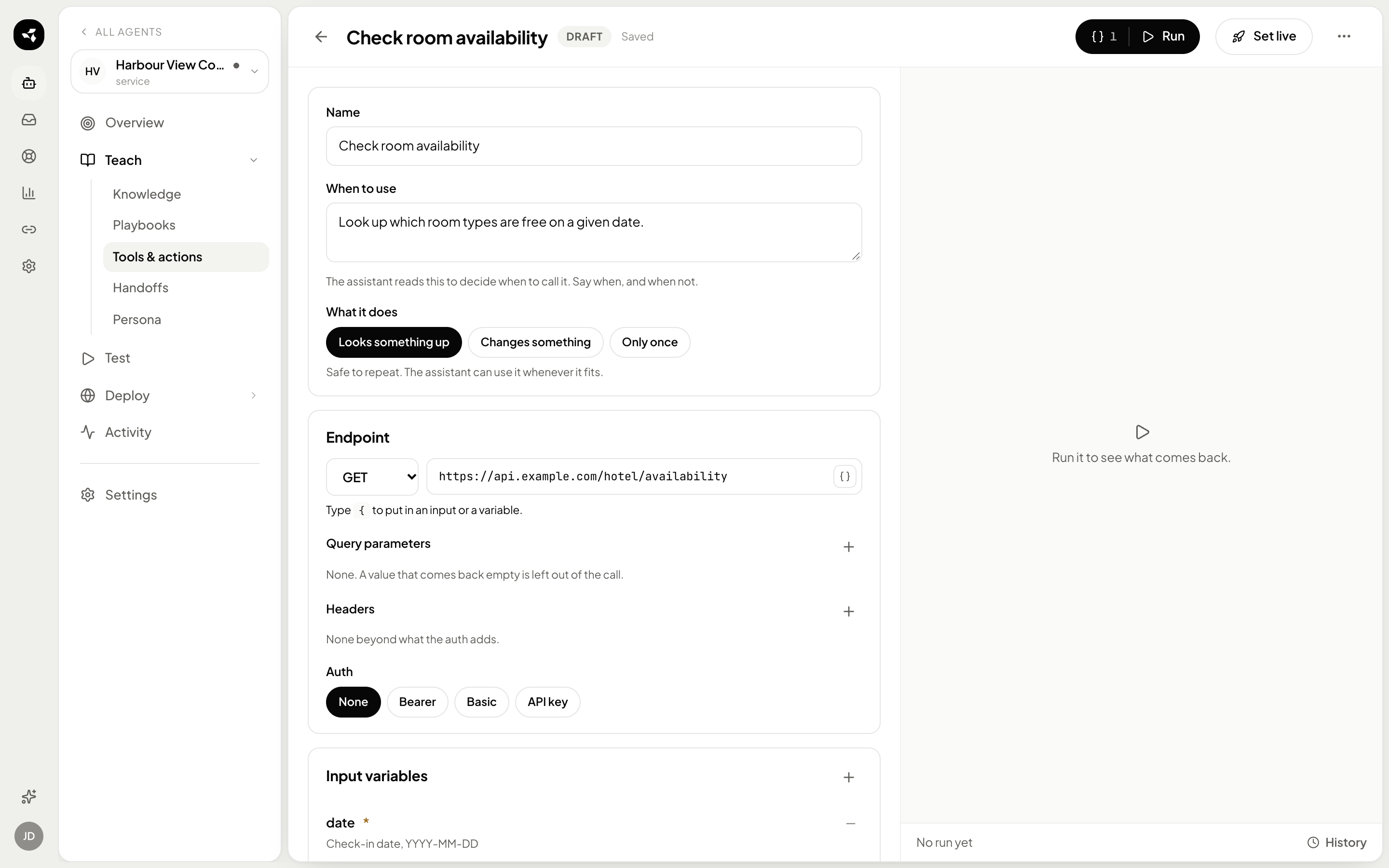
Name it and say when to use it
- Under Name, rename the tool the way your team talks, for example
Add patient note. - Under When to use, write when the agent should call it, and when not.
The agent reads both to decide. Be specific: "Use after the patient has described their symptoms and agreed to be contacted. Don't use for general questions."
Check what it does
- Under What it does, confirm Looks something up, Changes something or Only once.
For an integration tool, the choice comes from the catalog. Change it if it's wrong. A tool whose effect isn't known is treated as Changes something. A tool that changes something asks the customer to confirm first, and only runs from a playbook step unless you turn on Usable outside a playbook and fill in Before running, confirm.
Fill in the inputs
- In Input variables, choose an input to open it.
- Under Data source, choose Let the assistant collect or Custom value.
- Turn on Required for anything the agent must have before the tool runs.
Customer-given values are passed to the service as they are. A custom value can use variables, such as a shared pipeline name.
Keep what comes back
- Under What you get back, choose Run to call the tool once.
- Give a name to each field you need and leave the rest blank.
The action's fields are listed for you. The names you give are the ones later playbook steps can use. If every kept value comes back blank, a lookup counts as Nothing found.
What happens next
When Checks are all green, set the tool live. An integration tool needs a source bound and the integration connected, plus a real run. See Test a tool and set it live.
FAQs
Does connecting a service create tools?
No. You create a tool for each action you want the agent to use.
Can I build the tool before connecting?
Yes, but live runs fail until a Manager connects the service.
Can I change what the tool is allowed to do?
Yes. Change What it does if the catalog's choice is wrong.
Who can use the tool once it exists?
Any playbook in the workspace. The agent you built it from also gets it attached.