
Change agent settings
Change an agent's name, memory, system tools and opening hours, or delete the agent.
Settings hold how the agent runs. What it knows and how it sounds live under Teach instead. See The agent console and Persona overview.
Settings has two tabs, General and Availability. The header shows the status, Save and Publish. Saving is live: agents have no drafts of their settings.
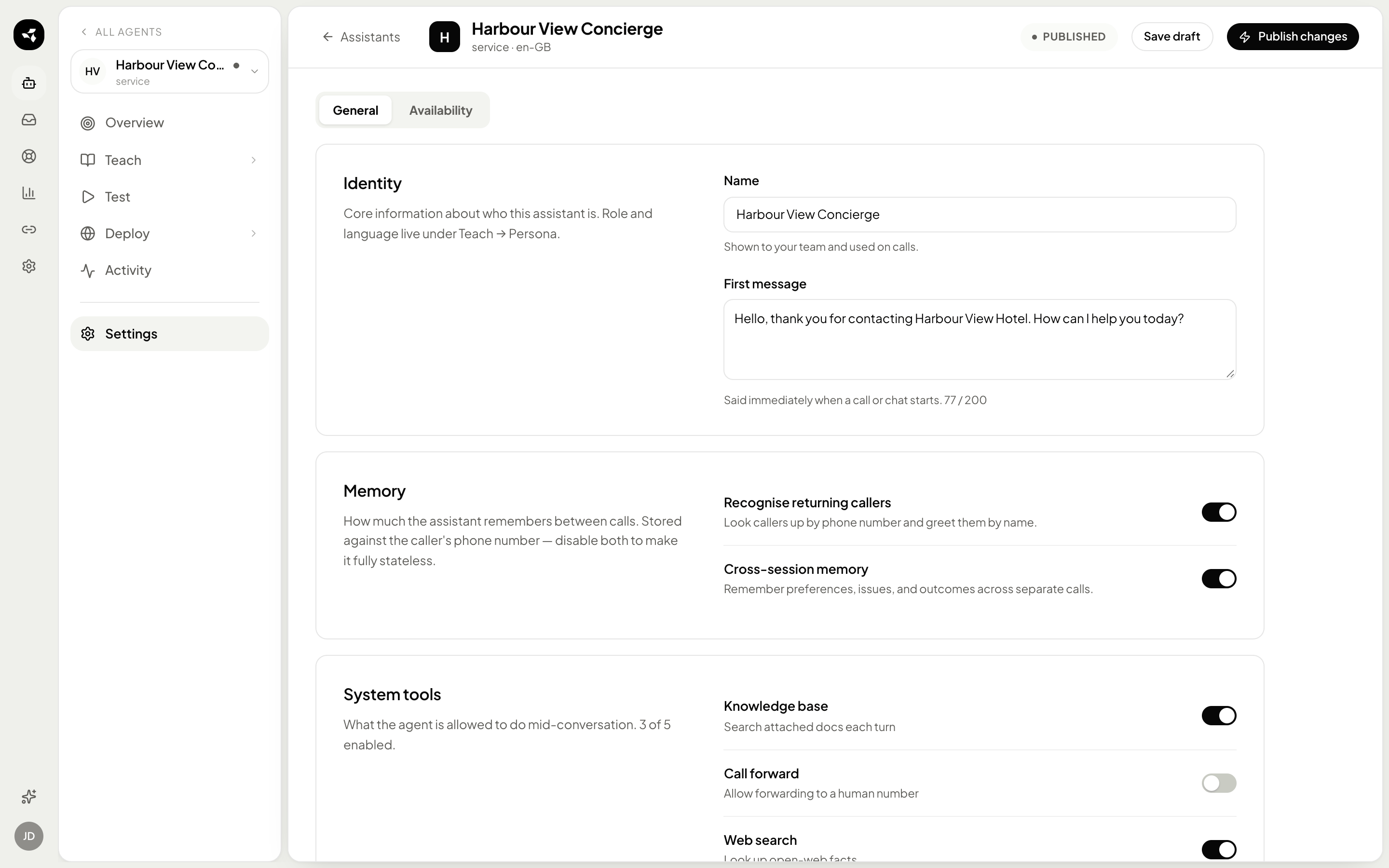
Change a setting
Every change follows the same three steps. The sections below say what each setting does.
- Go to Agents, choose your agent, then open Settings.
- Pick the General or Availability tab and make your change.
- Select Save. A "Saved" message confirms it.
The change reaches the next conversation straight away. Calls already in progress are not affected. Try new wording in Test before you save. See Publish and go live.
Set the name
Stay on the General tab for this.
- Go to Agents, choose your agent, then open SettingsGeneral.
- Under Identity, edit Name. Your team sees it and it is used on calls, so use a name staff recognise, such as Front desk.
- Select Save.
The opening line a caller or visitor hears is the Greeting, and role and language are set there too, in TeachPersona. See Persona overview.
Decide what the agent remembers
Memory lets the agent treat a returning caller as someone it knows.
- Go to Agents, choose your agent, then open SettingsGeneral.
- In the Memory card, switch Recognise returning callers on to look callers up by phone number and greet them by name.
- Switch Cross-session memory on to remember preferences, issues and outcomes across separate calls.
- Select Save.
Memory is stored against the caller's phone number. Turn both switches off to make the agent fully stateless, which means every conversation starts fresh.
Turn system tools on or off
System tools are abilities the agent has built in. Each one is a switch.
- Go to Agents, choose your agent, then open SettingsGeneral.
- Under System tools, switch on the abilities you want.
- Select Save.
The abilities are these. Knowledge base searches the agent's knowledge each turn. Call forward allows forwarding a call to a human number. Web search lets the agent look up facts on the open web. Skip turn lets the agent stay silent when it should. End call lets the agent end the conversation.
With Web search on, the agent can answer from public websites, not only your knowledge. Turn it off if answers must come only from what you taught it.
Set opening hours
Availability tells the agent when your business is open.
- Go to Agents, choose your agent, then open SettingsAvailability.
- Choose your Timezone. Your hours are read in this timezone.
- Leave Always open on and the agent answers at any hour. Switch it off to set hours.
- Under Active hours, set each day open or closed, with opening and closing times.
- Choose the Out-of-hours behavior, then select Save.
Out-of-hours behaviour decides what the agent does when someone calls outside those hours. Take message briefly explains your hours, takes a message and forwards it by email. Play hours tells the caller your hours and ends the call. Voicemail sends the caller to voicemail with a friendly greeting. A hotel with a night desk might choose Take message, so late callers can still leave a request.
Change the voice
The voice is not in Settings.
- Go to Agents, choose your agent, then open DeployVoice and select the gear icon (Voice settings).
- Choose a voice from the library with Change. Filter by gender and accent, and play a voice to hear it on a phone line or in studio quality.
- Set Talking speed from 0.6x to 1.5x. Only some voices offer this.
- Set Creativity, from Predictable to Creative, for how freely the agent words its replies.
- Select Save voice settings.
A published agent uses the new voice on its next call. See Phone and voice overview.
Delete an agent
- Go to Agents, choose your agent, then open SettingsGeneral.
- Scroll to Danger zone, select Delete assistant, then confirm.
The agent's phone numbers are unassigned. They stay in your workspace, ready to route to another agent. Its web chat widget and WhatsApp links are removed. Past conversations stay in the Inbox. Deleting cannot be undone. If you only want the agent to stop answering, take it off its channels instead. See Publish and go live.
FAQs
Do I need to publish after saving a setting?
No. Saved settings reach the next conversation straight away. Publish is what switches the agent on for its channels. See Publish and go live.
Where do I change the agent's greeting, language and role?
In TeachPersona, not in Settings. See Persona overview.
Will a setting change affect a call that is already happening?
No. Calls already in progress are not affected. The change applies to the next conversation.
Can I make the agent forget callers?
Turn off both Recognise returning callers and Cross-session memory. The agent is then fully stateless.