
The agent console
The console is the one page where you teach, test, deploy and review a single agent.
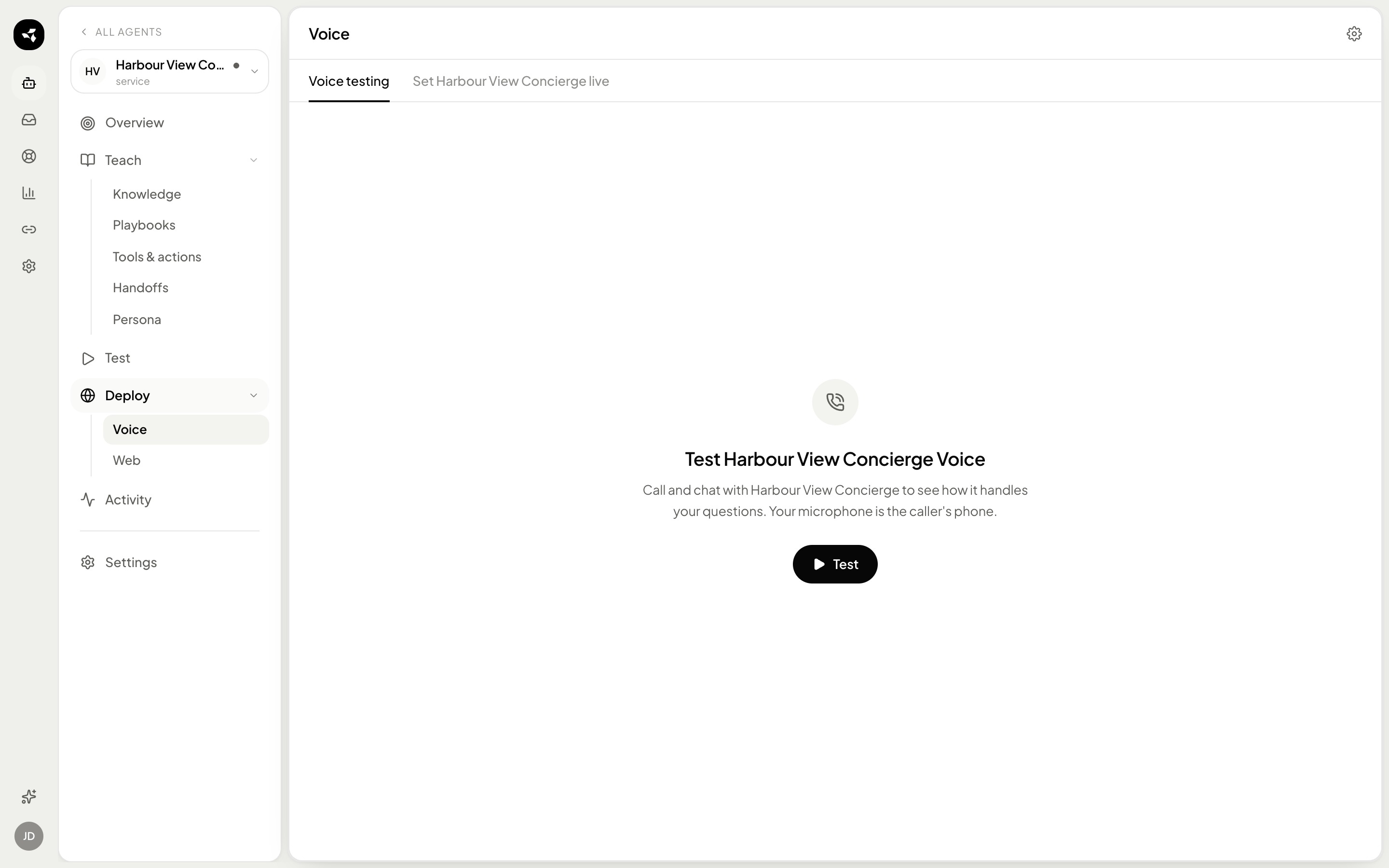
The console is one page per agent. Open it by going to Agents and choosing an agent. The left rail lists its sections, and Settings sits at the bottom. Knowing what each section is for saves you from hunting through the dashboard when you want to fix something.
Take a hotel front desk agent. A guest says the agent gave the wrong breakfast time. You open the console, go to TeachKnowledge to correct the fact, go to Test to check the new answer, and later read the guest's conversation in Activity. Every step is in the same place.
Overview
Open Overview to check how this agent is doing. It holds live status, conversation stats, what needs you, and where the agent answers. It is a good first stop each morning.
Teach
Teach is where you change what the agent knows, says or does. It holds five things.
- Knowledge is the facts the agent answers from. See Knowledge overview.
- Playbooks are the procedures it follows. See Playbooks overview.
- Tools & actions let it act in your systems. See Tools overview.
- Handoffs decide when a person steps in. See Handoffs overview.
- Persona sets how it sounds. See Persona overview.
Test
Test holds test scenarios and a preview chat. Use it to try behaviour before customers meet it. The preview uses your saved agent settings plus any unpublished playbook drafts. See Testing overview.
Deploy
Deploy is where you choose the voice and put the agent on a number or your site.
- Voice holds voice testing, voice settings and phone numbers. See Phone and voice overview.
- Web holds the website chat widget. See Add the web widget.
Activity
Activity shows this agent's conversations. Open it to review real conversations after launch, especially after you change something.
Settings
Settings holds the name, memory, system tools, availability, Publish and delete. Open it to switch the agent on or change how it runs. See Change agent settings.
What lives elsewhere
WhatsApp is not in the console. It is connected once for the workspace under SettingsChannelsWhatsApp, and assigned to an agent there. See Connect WhatsApp. Automation runs also live on their own workspace page, not in Activity.
Work a session in order
A typical session moves down the rail, from teaching to going live.
- Go to Agents, choose your agent, then open Teach and add knowledge, a playbook, a tool, a handoff and a persona.
- Open Test and hold a trial conversation.
- Open DeployVoice to choose a voice, test a call and point a phone number at the agent. Open DeployWeb to set up the chat widget.
- Open Settings and select Publish so channels answer. See Publish and go live.
- Open Activity to read conversations once real customers arrive.
Agents have no draft copy. Saved settings, persona and voice changes reach a published agent's next conversation. Playbooks are the exception: they stay in draft until you publish them.