
Create an API tool
Point a tool at an endpoint you host, say what it needs and what it does, and save it as a draft you can test.
Create an API tool when your agent should call your own system, like a hotel's booking service or a clinic's appointment system. A new tool starts as a draft. Nothing reaches customers until a real run works and you set it live. Check the tool list first in case a tool for this job already exists.
You need the Member or Manager role to do this. Have the endpoint's https:// URL and any credentials it needs to hand.
Start the tool
- Go to your agent, then TeachTools & actions.
- Choose New tool.
- Choose API call as the source.
A draft called New API call opens, and you describe the endpoint in the editor. The draft saves itself as you type. The header shows Saving…, then Saved. If a save fails, choose Couldn't save · Retry. A tool created from an agent's console is attached to that agent, and any playbook in the workspace can use it.
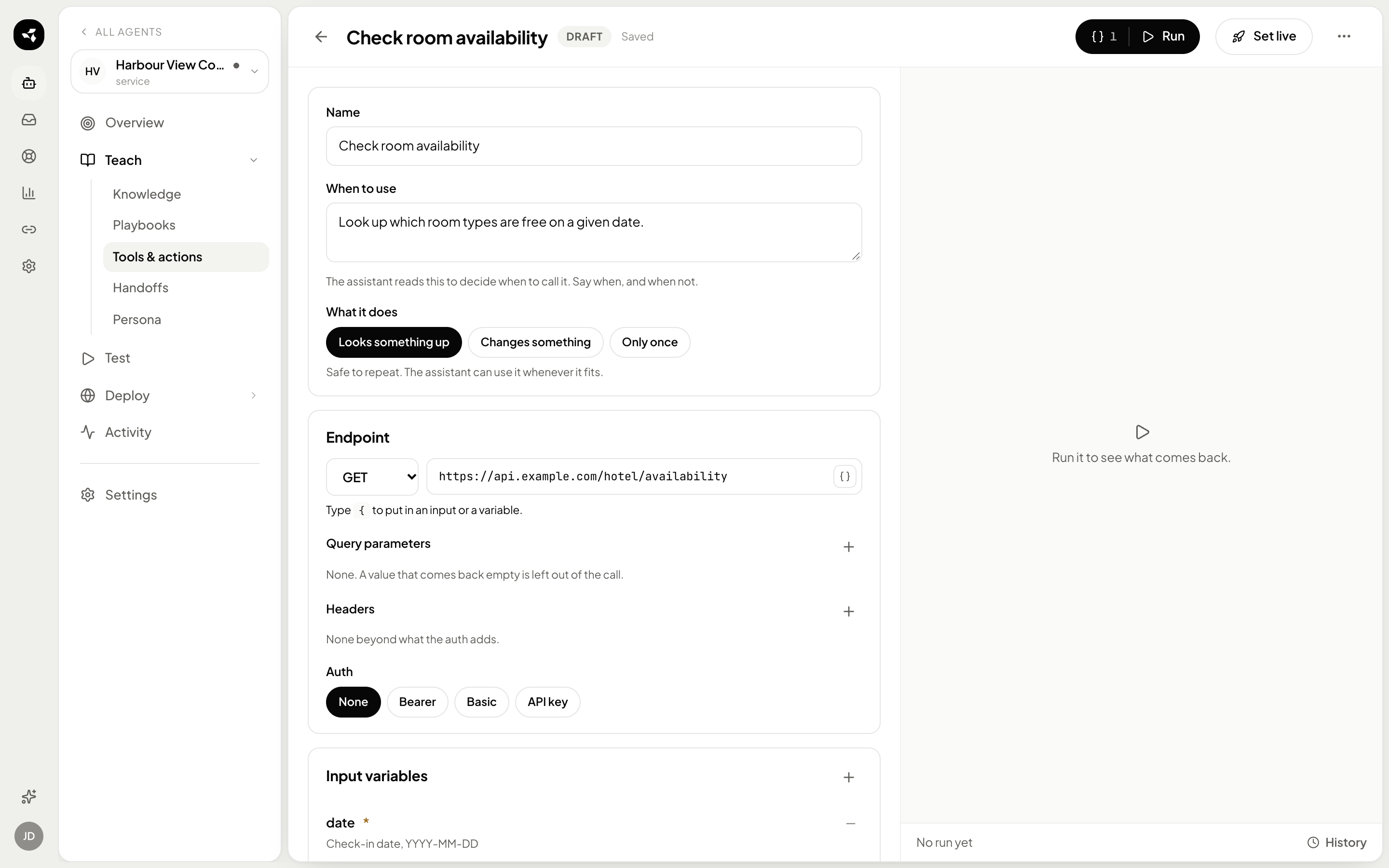
Name it and say when to use it
- In the editor, find Name and rename the tool the way your team talks, for example
Look up booking. - Under When to use, write when the agent should call it, and when not.
The agent reads both to decide whether to call the tool. A good example for a hotel: "Use when a guest asks about an existing reservation. Don't use for new bookings."
Say what it does
- Under What it does, choose Looks something up, Changes something or Only once.
Looks something up is safe to repeat, so the agent can use it whenever it fits. Changes something means the customer confirms first, and it isn't repeated once it has worked. Only once can only happen once in a conversation, like a refund, and the customer confirms first. A tool whose effect isn't known is treated as Changes something.
To let a tool that changes something run outside a playbook, turn on Usable outside a playbook. Then fill in Before running, confirm with what the agent should check with the customer, like "the address, and that they want the receipt re-sent". An Only once tool always stays inside playbooks.
Describe the endpoint
- In the Endpoint card, pick the method:
GET,POST,PUT,PATCHorDELETE. - Enter an
https://URL. - Add Query parameters and Headers as name and value pairs.
- Choose Auth, then Body if the method takes one.
Inputs appear as {{name}} and variables as {key}. Type { in the URL to insert an input or a variable. If you name an input that doesn't exist yet, the card says so and offers Add it. The host must be written out. It can't come from an input or a variable. Only the path, query and body can.
A query value that comes back empty is left out of the call. For a header value nobody should read back, turn on secret. Body is None, JSON or Form, and isn't shown for GET and DELETE. Inputs are filled in and escaped at call time.
Auth has four types: None, Bearer (a token), Basic (a username and password) and API key (a header name and a key).
Put a credential in Auth or in a header with secret turned on. It's stored encrypted and never shown again, and it's only sent to the host written in the URL. To share one credential across tools, store it as a sensitive variable with Allowed domains. See Variables and sensitive values. Never paste a credential into a URL or an input.
Add the inputs
- In Input variables, choose an input to open it.
- Set its Name, like
booking_ref, its Format (string,number,integerorboolean) and a Description. - Under Data source, choose Let the assistant collect or Custom value.
- Turn on Required if the agent must collect it before the tool runs.
The Description is what the agent is told: how to ask for the value and what shape it takes. "The booking reference the guest was emailed, six letters and numbers" is better than "booking". Let the assistant collect asks the customer when needed. Custom value sends the same value every time, and it can use variables. Fallback value is used when the customer doesn't give one.
Values the customer gives are passed to your system as they are. Your system should check that the customer is allowed to see the record they name. The agent can't know.
Keep what comes back
- Under What you get back, choose Run to call the tool once.
- Click a field in the response to keep it.
- Rename it under What you get back. Click it again to stop keeping it.
The kept values are the ones later playbook steps can use, by the names you gave them. If every kept value comes back blank, a lookup counts as Nothing found. Before the endpoint is ready, you can paste a Sample response to try the tool, but going live still needs one real run.
What happens next
When Checks are all green, you can set the tool live. See Test a tool and set it live.
FAQs
Can the URL host come from an input?
No. Write the host out in the URL. Only the path, query and body can use inputs or variables.
Does the agent see my credentials?
No. A credential in Auth or in a secret header is stored encrypted and never shown again.
Why is my tool not offered outside playbooks?
A tool that changes something only runs from a playbook step unless you turn on Usable outside a playbook. An Only once tool always stays inside playbooks.
Do I lose my work if I leave the editor?
The draft saves as you type. Check that the header shows Saved.