
Tools overview
A tool is one thing your agent can do in a system your business uses, like look up an order or create a contact.
A tool lets your agent act while it talks to a customer, not just answer from what it knows. Picture a hotel guest asking where their booking stands. Without a tool, the agent can only say it doesn't know. With a "Look up booking" tool, it checks your system in real time and tells them. You build each tool once, and any playbook in the workspace can use it.
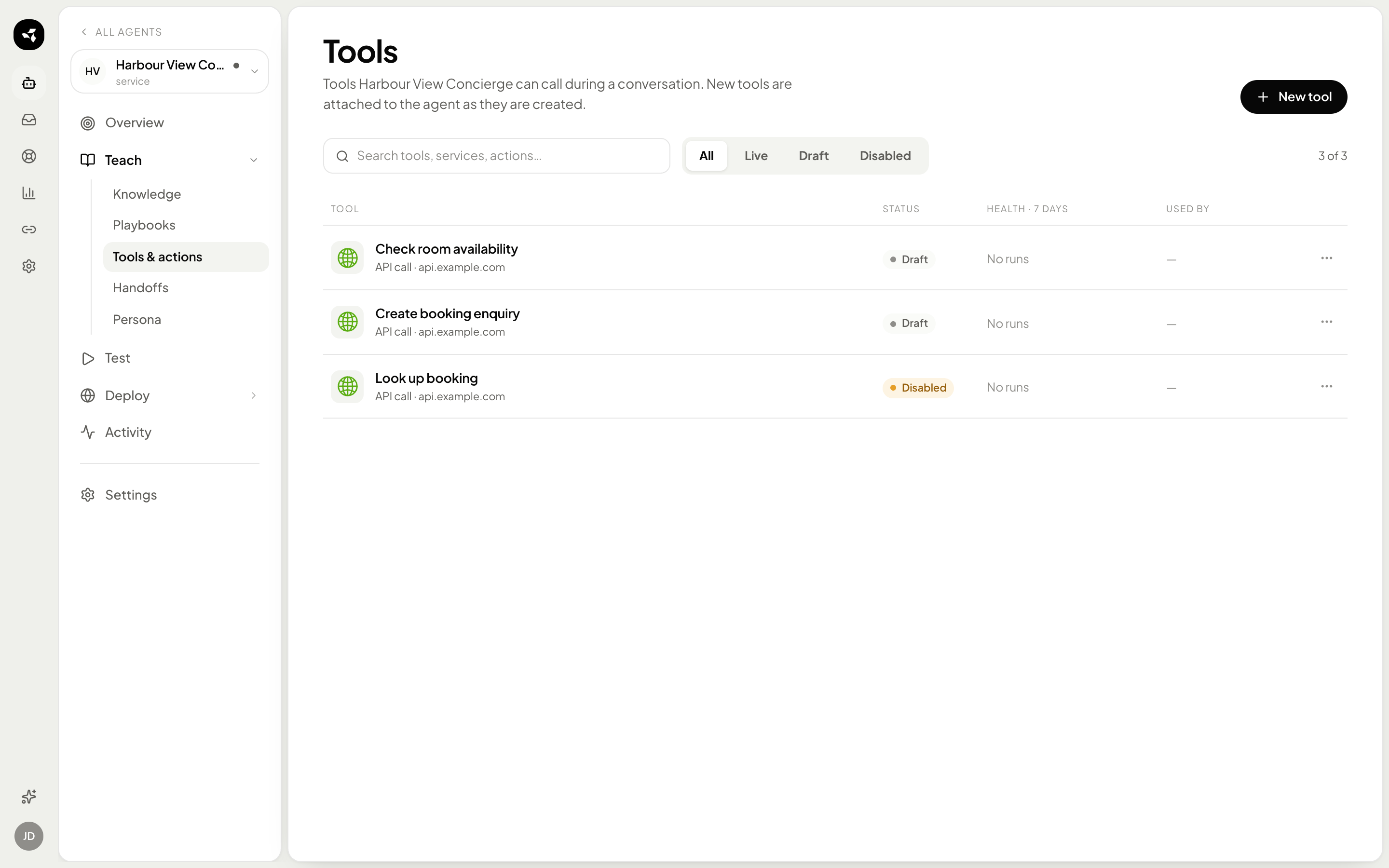
Where tools come from
When you choose New tool, you pick a source. There are two.
An integration tool is an action from a service in the integrations catalog, such as creating a contact in HubSpot or posting a message in Slack. Connecting a service doesn't create any tools. You create a tool for each action you want the agent to use. See Create an integration tool.
An API call tool is an endpoint you host yourself, such as GET https://api.yourshop.com/orders/{{order_id}}. You describe the URL, the credentials and the inputs, and Careflow makes the call. See Create an API tool.
What a tool does to your system
Every tool says what it does, and that decides when the agent may use it.
A tool that Looks something up is safe to repeat. The agent calls it whenever it fits, inside a playbook step or outside one. A tool that Changes something asks the customer to confirm first, and isn't repeated once it has worked. Inside a playbook step it just runs after the confirmation. Outside a playbook it only runs if you turn on Usable outside a playbook. A tool marked Only once also asks for confirmation and happens at most once in a conversation, like a refund. It never runs outside a playbook.
In the registry, a live tool that only works inside a playbook step carries a playbook step only tag. A tool that may run outside a playbook after asking shows asks first.
Three possible results
Every call ends one of three ways: Worked, Nothing found or Couldn't run. A playbook can branch on the result, for example to ask for the booking reference again when a lookup finds nothing. See Tool results and errors for what each one means and how to handle it.
How the agent chooses a tool
The agent reads a tool's name and its When to use text to decide what to call. Look up booking with "Use when the guest asks about an existing reservation" works much better than Booking tool. Name tools the way your team talks, and say when not to use them as well as when to.
Check the registry before you build. If a tool already exists and its failure rate looks fine, wire it into your playbook instead of creating a duplicate. See Test a tool and set it live.
From draft to live
A new tool starts as a draft. Nothing reaches customers until a real run works and you set it live. You can test it in the tool editor, read its track record once it is taking real conversations, and take it offline if you need to. See Test a tool and set it live.
Who can build tools
Members and Managers can both create, edit, test, set live and delete tools. Copilot can also draft a tool or a change to one, and you approve the draft before it's saved. Copilot never adds credentials, so you add those in the tool yourself.
Developers
Tools are how your agent reaches your systems. You usually build them here, in the dashboard, but your developers can also create, change, test and remove tools with an API key that has access to Tools. For the other direction, where your own software messages an agent or starts an automation, see What you can build.
Get started
- Create an API tool to call an endpoint you host.
- Create an integration tool to act in a connected service.
- Use tools in playbooks to call a tool from a step.