
Test a tool and set it live
Run a tool, read what comes back, set it live once a real run works, and keep an eye on how it performs.
Test a tool before any customer depends on it. A tool that returns the wrong thing is worse than no tool, because the agent acts on bad information. Testing happens in the tool editor: the left side is the tool, the right side shows what the last run returned.
You need the Member or Manager role to do this. A live run calls the real system with your stored connection, so a tool that changes something really changes it. Test against records you're happy to touch, such as a test booking.
Run the tool
- Go to your agent, then TeachTools & actions and open the tool.
- Choose the braces button beside Run to open Run with.
- Enter the values the agent would collect in a conversation. Required ones are marked
*. - Choose Run.
Run with also says what the run will do: "Reads from your connected account; nothing changes" for a lookup, or a warning when it will change something or can't be undone. Unsaved edits save first, so the run uses what you see.
Read the response on the right, and the result underneath it: Worked, Nothing found or Couldn't run, with the response size and how long it took. Fix anything that's wrong and run again. Choose Show raw to see the response exactly as it came back.
When a run fails before any response comes back, the pane says why, for example that the endpoint didn't answer within 15 seconds or that the response is too large. Responses over 1 MB are refused.
Live request or sample response
An API call tool with a saved Sample response offers two modes in Run with. Live request calls your endpoint for real. Sample response reads your saved sample as if the endpoint had sent it, so nothing runs and no values are needed. Use it to set up what you keep before the endpoint exists. Only a live run can take a draft live.
Set it live
- Open the tool and look at Checks.
- Fix anything it lists.
- When all checks are green, choose Set live.
Checks lists what still stands between the draft and going live. An API call needs an https URL for the endpoint. An integration tool needs a source bound and the integration connected. Both kinds need a live run that has reached the provider. A run counts when its result is Worked or Nothing found. Couldn't run proves nothing, and a sample run never counts. Checks also flags problems in your inputs, like a name that looks like a stored credential or an http:// address.
If you choose Set live too early, you see Not ready to go live and the reason.
A live tool saves as you type, and the next call uses the change. There's no separate publish for tools. To rework a tool customers rely on, test carefully, or take it offline first.
Take a tool offline
- Open the tool.
- Open the ⋯ menu and choose Take offline.
The tool shows Offline in the editor and Disabled in the list. Agents stop offering it, and a playbook step that calls it gets Couldn't run. Choose Set live to bring it back. It doesn't need another test.
Read its track record
- Open the tool and choose History under the response.
- Choose Response to go back.
Last 7 days shows Runs, Failure rate and Avg latency. Used by lists the playbooks that call this tool. Runs lists recent calls with their time, result and duration. Your test runs in the editor don't appear in History. It only shows calls from conversations.
Find tools in the registry
- Go to your agent, then TeachTools & actions.
- Type in Search tools, services, actions… to filter by name, service or action.
- Use All, Live, Draft and Disabled to narrow the list.
Each row shows the Tool, its Status, Health · 7 days (runs over the last week and the share that failed, or No runs) and Used by (how many playbooks call it). Choose a tool to open it.
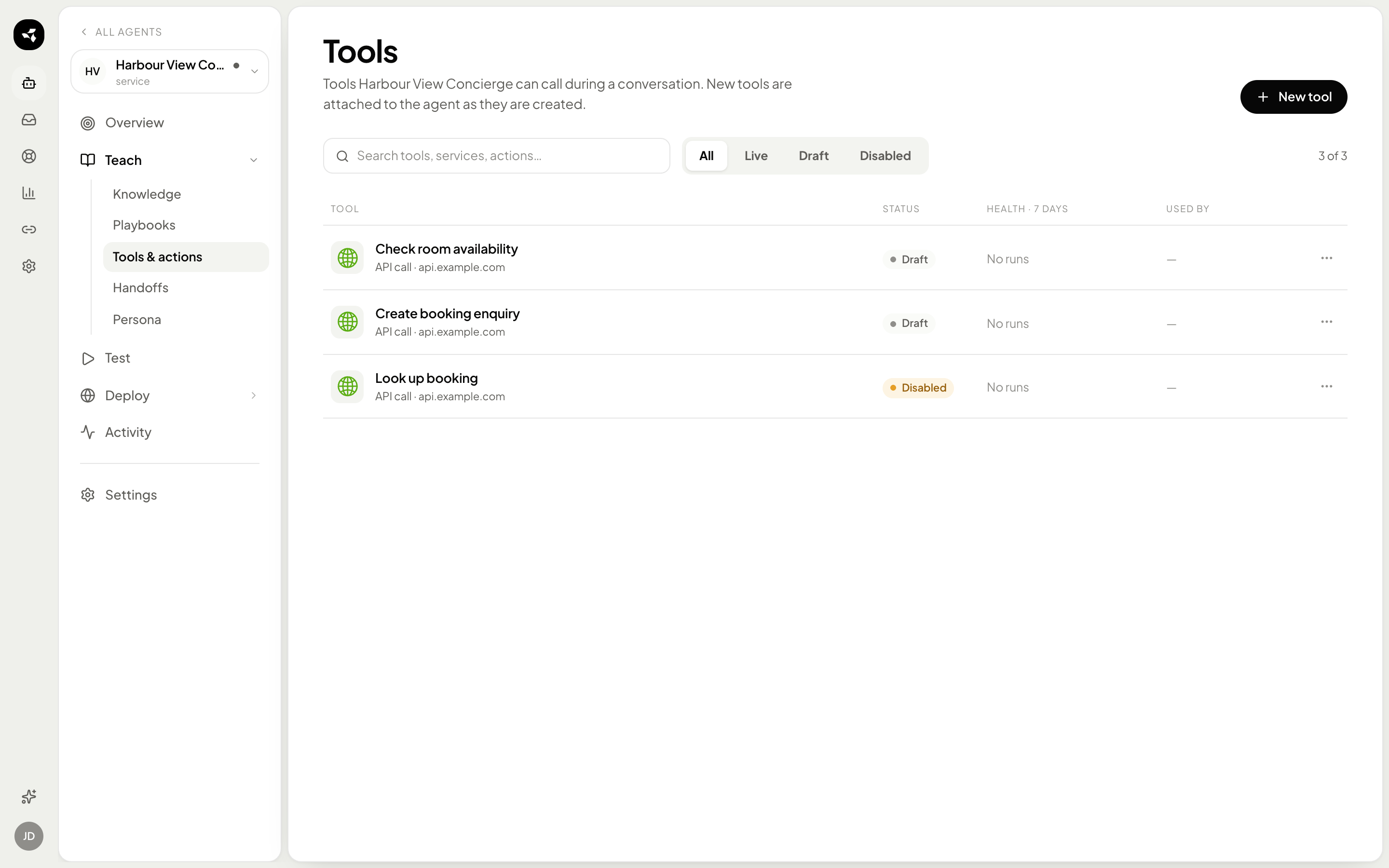
The agent's list shows only the tools attached to that agent.
Remove or delete a tool
- To take a tool off an agent, open the ⋯ menu on its row and choose Remove from agent. The tool stays in the workspace and playbooks can still use it.
- To delete it for good, open it, then choose ⋯Delete tool.
The delete dialog lists any playbooks that use the tool. Its run history goes with it, and this can't be undone. A playbook that calls a deleted tool shows deleted tool on the step and can't publish.
FAQs
Does a test run change real data?
Yes. Run calls the real system, so a tool that changes something really changes it. Use test records.
Why can't I set my tool live?
Open Checks. Usually the tool still needs a live run that reached the provider, or the integration isn't connected.
Do I need to republish playbooks after editing a live tool?
No. Edits apply to the tool's next call.
Do my test runs show in History?
No. History only shows calls from real conversations.