
Notifications
Choose how Careflow reaches you and what it tells you about.
Careflow keeps you informed in two ways: an in-app notification list you open from the bell icon, and preferences that decide what is sent where. Preferences are yours alone. Turning off a category affects your account, not your teammates'. Every signed-in user manages their own, so no special role is needed.
Read your notifications
- Choose the bell icon to open your notification list.
- Read what happened and when. An unread count shows how many you have not seen.
- Mark a single notification as read when you open it, or mark all as read to clear the count in one action.
- Delete notifications you no longer need.
New notifications arrive while you work, so you don't need to refresh the page. A busy manager at a hotel might keep the list open to spot a billing alert as it lands.
Set your preferences
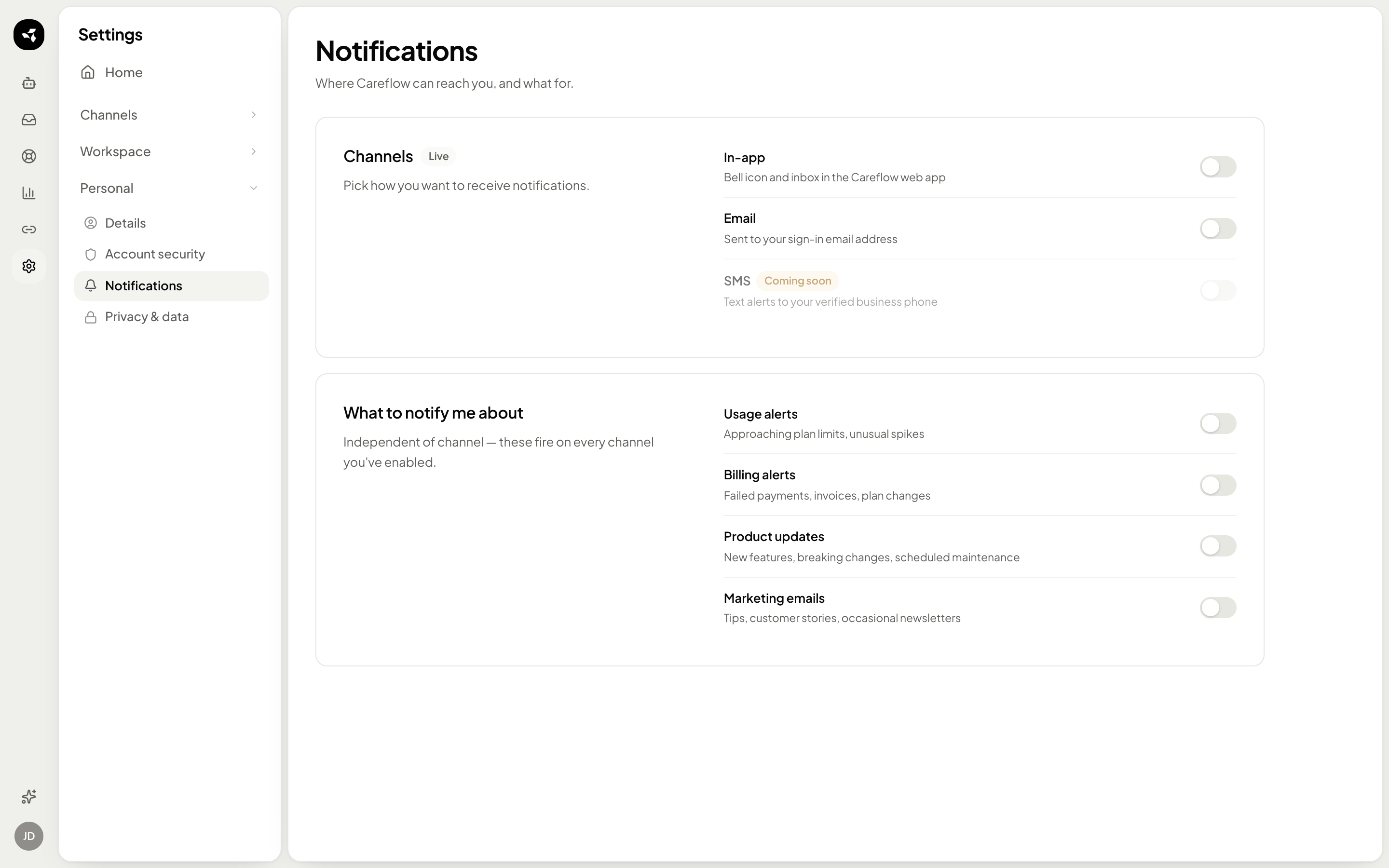
- Go to SettingsPersonalNotifications.
- In Channels, choose how you receive notifications.
- In What to notify me about, toggle the categories you want.
Channels
- In-app: the bell icon and inbox in the Careflow web app. With it on, you also get a New handoff notification whenever an agent hands a conversation to your team.
- Email: sent to your sign-in email address.
- SMS: text alerts to your verified business phone. It is marked Coming soon.
What to notify me about
These categories fire on every channel you have enabled.
- Usage alerts: approaching plan limits and unusual spikes.
- Billing alerts: failed payments, invoices and plan changes.
- Product updates: new features, breaking changes and scheduled maintenance.
- Marketing emails: tips, customer stories and occasional newsletters.
Each toggle saves immediately. If you switch a channel off, your categories stay configured, and you simply stop receiving them on that channel until you switch it back on.
Choosing what to keep on
Start with in-app and email on, and leave the usage and billing alerts enabled. Product updates are useful if you are the person who keeps the workspace running. Marketing emails are optional, and you can switch them off without missing anything that affects your agents. You can change any of this at any time.
What happens next
You start receiving exactly what you asked for, on the channels you enabled. Billing and usage alerts are the ones most teams keep on, because they warn you before limits or failed payments interrupt your agents. Plan details live in Billing.
FAQs
Does turning off a category affect my teammates?
No. Preferences are personal to your account.
Where do email notifications go?
To your sign-in email address.
Can I get text message alerts?
Not yet. SMS is marked Coming soon.
Do I need to be a Manager to change these?
No. Every signed-in user manages their own notification preferences.