
Invite your team
Invite teammates, give each the right role, and remove access when people leave.
You need the Manager role to do this.
Agents serve customers, but people run the workspace. The Team page, under SettingsWorkspaceTeam, is where you invite teammates, choose each person's role and remove access when someone leaves. Every teammate gets their own login. Members can open Team to see who is on it, but they get no invite button, no Invitations tab and no row menu.
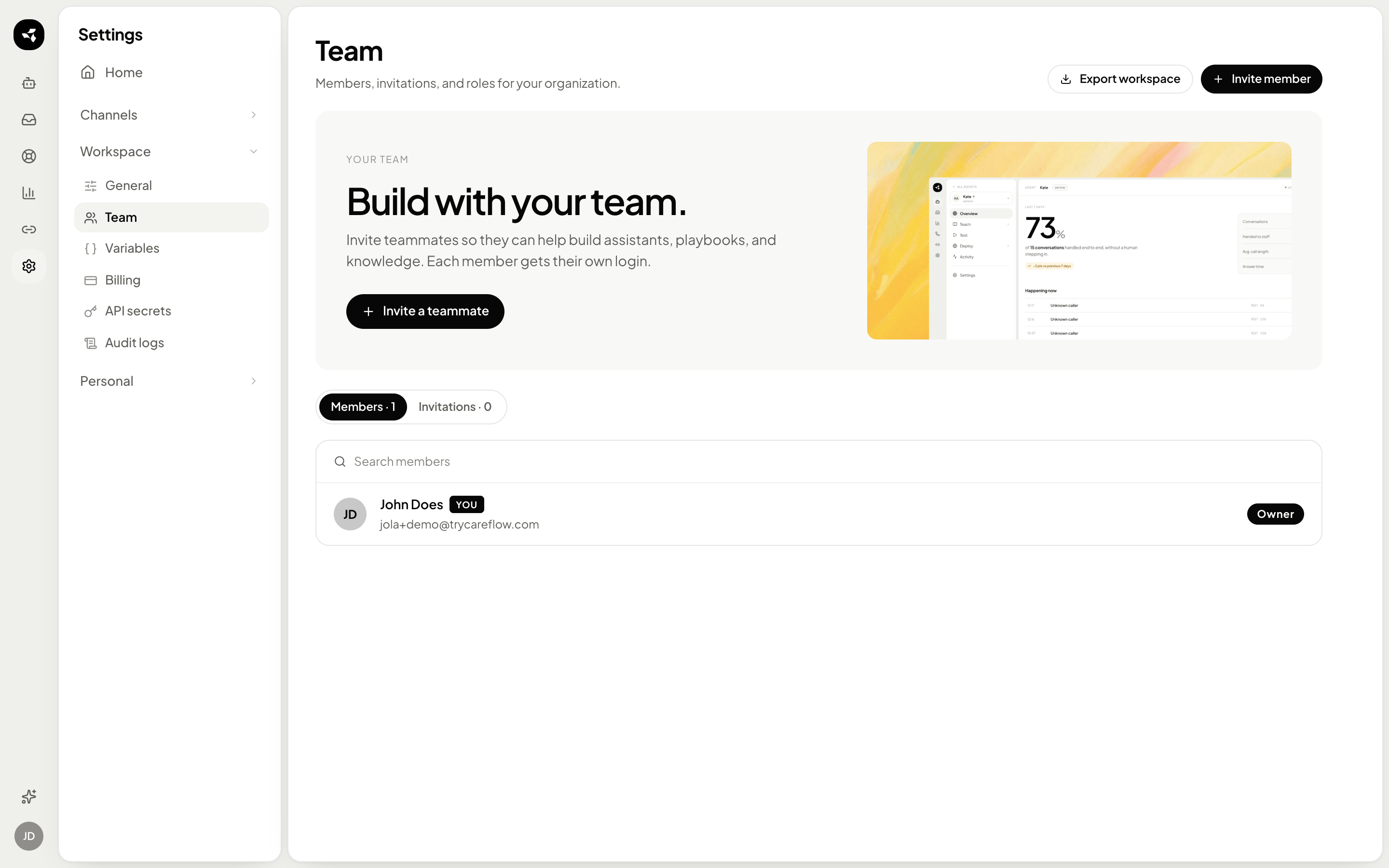
Invite a teammate
- Go to SettingsWorkspaceTeam.
- Choose Invite member.
- In the Invite team member dialog, enter the person's Email address.
- Choose the Role, Member or Manager.
- Choose Send invitation.
The person receives an email with a link to create their account. A Member builds agents, playbooks, knowledge and handoffs, and works the Inbox. A Manager also runs the team, channels, integrations, security and billing. For a clinic, the receptionist who writes the agent's answers is usually a Member, and the practice manager who connects the phone line is a Manager. See Roles and permissions.
Track invitations
- Go to SettingsWorkspaceTeam and open the Invitations tab.
- Find the person. The list shows when each invite was sent and when it expires.
- Choose Resend if they lost the email.
- Choose Revoke to cancel an invitation that is no longer wanted.
Expired invitations can only be revoked. Send a fresh invite instead.
Change someone's role
- Go to SettingsWorkspaceTeam and open the Members tab.
- Open the menu on the person's row.
- Choose Change role, then pick manager or member.
Changing a role signs the person out of every session. They pick up the new role the next time they sign in. Do this when someone's responsibilities change, such as a Member who now needs to connect phone numbers.
Remove someone
- Go to SettingsWorkspaceTeam and open the Members tab.
- Open the menu on the person's row.
- Choose Remove.
The person loses access to the workspace and is signed out of every session. Remove people the same day they leave.
There is no row menu on your own row or on the Owner's. Nobody can change their own role or remove themselves, and the Owner can't be changed or removed. The Owner role can't be given to anyone.
Owner data actions
As the Owner, the row menu on a teammate also offers Export, for their activity logs, and Delete, for their account, which you confirm by typing their email. The Owner also gets an Export workspace button at the top of the page. See Security and privacy.
What happens next
New teammates sign in with their own account and land in the workspace with the role you gave them. Every membership change is recorded in Audit logs, under SettingsWorkspaceAudit logs.
FAQs
Why don't I see an Invite member button?
Only Managers can invite. Members can see who is on the team but can't change it.
Can I make someone the Owner?
No. The Owner is whoever created the workspace, and the role can't be given to anyone else.
Someone says they were signed out suddenly. Why?
A Manager changed their role or removed them, and either one ends their sessions. They sign back in to pick up the new role.
An invitation expired. What do I do?
Revoke it on the Invitations tab and send a new one.