
Billing
See your plan and usage, subscribe or change plans, update your payment method and find your invoices.
You need the Manager role to do this. Billing is hidden from Members, so if you don't see it under SettingsWorkspace, ask a Manager.
Your bill is your plan plus usage. The plan you pick controls which features you can use and how much usage is included each month. Take a small clinic that starts on a free trial, takes real calls for a few weeks, then moves to a paid plan once the front desk agent is busy. Every step of that journey happens on one page, SettingsWorkspaceBilling.
Contact support@trycareflow.com. Include your workspace name and the invoice date.
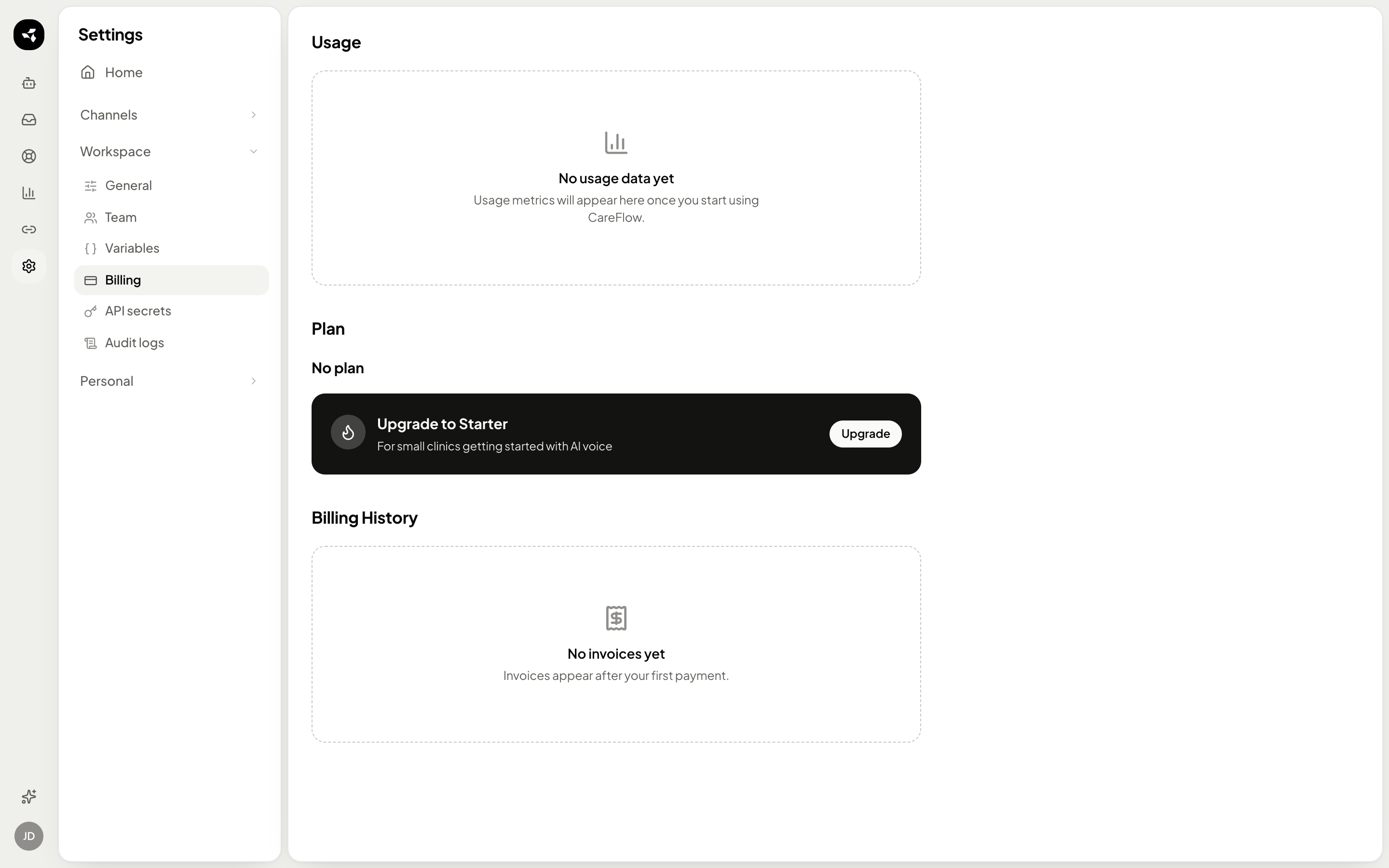
Check your plan and usage
- Go to SettingsWorkspaceBilling.
- Read Usage at the top. It shows credits used this month, with a bar and a legend for Voice, Messages, Documents and Workflows.
- Scroll to Plan. It shows the plan name, its status, the price, the billing interval and the renewal date.
Usage resets with each billing period. The status next to your plan reads Active, Free Trial, Past Due, Canceled or Expired, or No plan if you haven't subscribed.
If you use more voice minutes than your plan includes, a Voice overage alert shows the extra minutes, the per-minute rate and the estimated extra cost. If overages happen every month, a larger plan is usually the better choice.
Subscribe to a plan
- Go to SettingsWorkspaceBilling.
- Under Plan, choose Upgrade on the banner for the next plan up, or, where plan cards are listed, choose Subscribe on the plan you want.
- Complete the payment on the checkout page that opens.
When checkout finishes you return to Billing, and a banner confirms Payment successful! Your subscription is now active. If you back out of checkout, the banner reads Checkout was canceled. You can try again anytime. and nothing is charged.
Upgrade or change your plan
- Go to SettingsWorkspaceBilling.
- Under Plan, find the banner that reads Upgrade to the next plan up. It describes what the plan unlocks.
- Choose Upgrade.
The change is requested straight away, so the new plan's allowances apply from then on. The banner offers the next plan up from yours. Once you are on the highest plan, it no longer appears.
Update your payment method
- Go to SettingsWorkspaceBilling.
- Under Plan, open the Payment Method row and choose Manage.
- Update the card and billing details in the billing portal that opens.
The portal is run by our payment processor, so your card details are entered there and not in Careflow.
If your status reads Past Due, the last charge failed. Open the billing portal and update the payment method, and the subscription reactivates once the charge succeeds. Turn on billing alerts in Notifications so this never surprises you.
Cancel your subscription
- Go to SettingsWorkspaceBilling.
- Under Plan, choose Cancel.
- Choose Yes, cancel, or Keep subscription if you change your mind.
Access continues until the end of the current billing period.
Find your invoices
- Go to SettingsWorkspaceBilling.
- Scroll to Billing History.
Each invoice shows its date, its amount and its status, Paid or Failed. Before your first payment, the section reads No invoices yet.
What plans affect elsewhere
Your plan also sets the longest period you can keep conversations. See Conversation retention.
FAQs
Why can't I see Billing?
Billing is for Managers. Members don't see it. Ask a Manager, or ask to have your role changed. See Roles and permissions.
What happens when I cancel?
You keep access until the end of the current billing period.
Where do I change my card?
Under Plan, choose Manage on the Payment Method row. It opens the billing portal.
What does Past Due mean?
The last charge failed. Update the payment method in the billing portal and the subscription reactivates once the charge succeeds.
What counts towards usage?
The Usage section breaks the month down into Voice, Messages, Documents and Workflows.