
Business profile
Set the name on your account and the profile your business shows to the world.
Two pages describe who you are: your personal profile (your name) and the business profile (the name, website and details of your business). Filling them in early keeps every later step consistent. Your own profile is always editable. The business profile under General needs the Manager role, and deleting the workspace needs the Owner.
Update your personal profile
- Go to SettingsPersonalDetails.
- Edit First name and Last name.
- Choose Save changes.
This is how you appear to teammates in shared workflows and run history. Your sign-in email can't be changed from the dashboard. Password, two-factor authentication and sessions live under SettingsPersonalAccount security. See Security and privacy.
Update the business profile
You need the Manager role for this section.
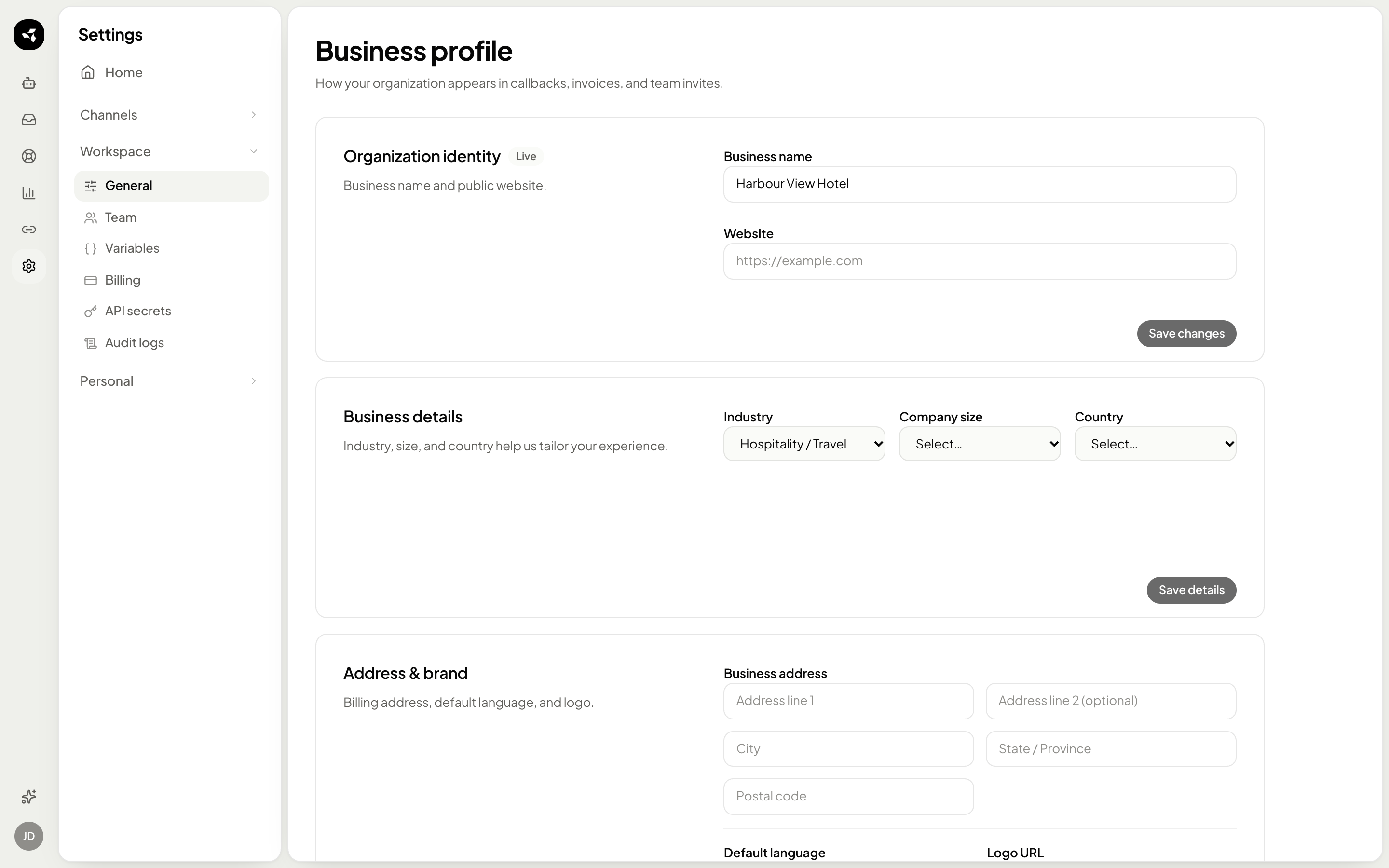
The business profile is on SettingsWorkspaceGeneral. It has three sections, and each saves on its own, so you can fill in one and come back to the others.
Organisation identity
- Go to SettingsWorkspaceGeneral.
- Set the Business name and Website.
- Choose Save changes.
The website must be a full URL, such as https://example.com. Use the name your customers know, such as the hotel's trading name rather than the legal entity.
Business details
- Go to SettingsWorkspaceGeneral.
- Choose the Industry, Company size and Country.
- Choose Save details.
Address and brand
- Go to SettingsWorkspaceGeneral.
- Fill in the Business address fields, pick a Default language and set a Logo URL.
- Choose Save address & brand.
Work through the sections in any order. Your changes take effect for the whole workspace, so it helps to agree the business name and website with your team before you save them.
Delete the workspace
Only the Owner can delete a workspace. It is permanent and irreversible, and it deletes every team member's account too. Export your data first, from SettingsPersonalPrivacy & data with Download workspace data, or with Export workspace on the Team page.
- Go to SettingsWorkspaceGeneral, as the Owner.
- Find the Delete workspace card, marked Danger zone. Only the Owner sees it.
- Choose Delete entire workspace, then type the workspace name to confirm.
- Choose Permanently delete workspace.
FAQs
Why can't I see General in Settings?
General is for Managers. Members don't see it. Ask a Manager to make the change.
Can I change my sign-in email?
Not from the dashboard.
Do I have to fill in the whole business profile?
No. Each section saves on its own. Completing your profile is part of onboarding, but you can return to it at any time.
Can a Manager delete the workspace?
No. Only the Owner can.