
Create your workspace
Sign up, verify your email and set up your workspace for the first time.
You finish with a verified login and an open workspace, ready to build your first agent. Whoever signs up creates the workspace and becomes its Owner.
If a colleague already created your workspace, don't sign up. Use the invitation link they sent you instead. See Invite your team.
Sign up
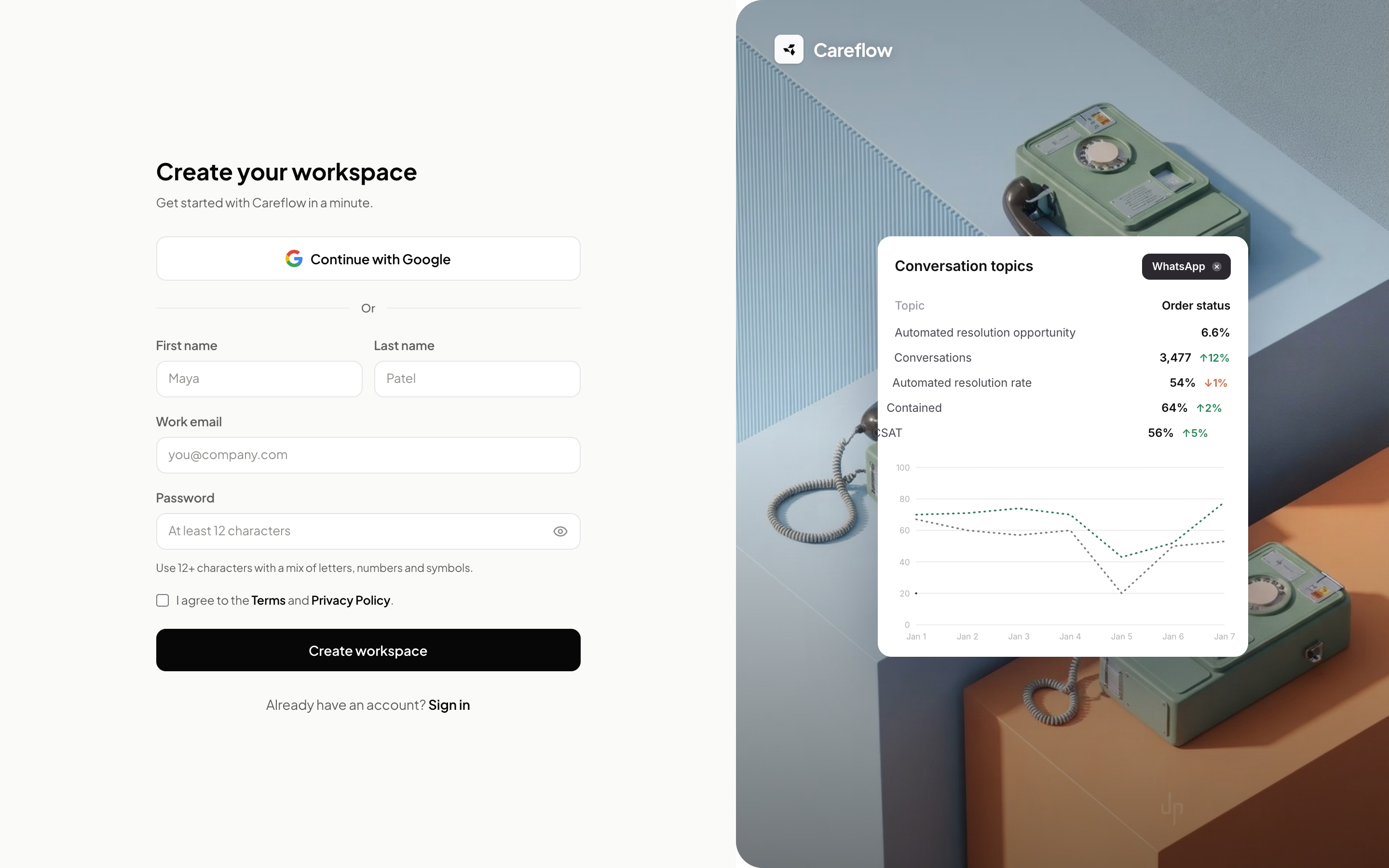
- Go to the dashboard and choose Sign up.
- Choose Continue with Google, or fill in First name, Last name, Work email and a Password of at least 12 characters.
- Tick the box to agree to the Terms and Privacy Policy.
- Choose Create workspace.
Using Google is the quickest route, because it skips email verification. If you use a work email and password, Careflow sends you a verification link next. Use an address you check regularly, since email notifications go to your sign-in address.
Verify your email
- If you signed up with email, Careflow shows Check your email. Open the verification email and select the link.
- When you see Email verified, choose Continue — finish setting up and sign in.
Google sign-ups skip this step.
If the link has expired or is invalid, you see Verification failed. Choose Back to login and sign in with your email and password. Careflow emails you a fresh link and tells you where it sent it. Each sign-in to an unverified account sends a new link, so you can always get another one. If nothing arrives, check your spam folder, then contact support@trycareflow.com.
Set up your workspace
- After you sign in, the setup steps open.
- On Business Information, enter your Business Name. This is the only required answer.
- Move through your role, Company Type, Use Case and Channels, or choose Skip this step on any of them. Choose Skip at the top to finish later.
- On Your workspace is ready, choose Go to dashboard.
You land on Agents. Setup doesn't create an agent for you, so that's the next step. For a hotel or clinic, a short answer on company type and use case is enough, and you can fill in the rest of your business details later in Business profile.
What happens next
You're the workspace Owner, with every permission. Build your first agent, then invite teammates as Members or Managers. Roles and permissions explains the difference. For a guided refresher at any time, choose Interactive Tour at the bottom of the sidebar.
FAQs
Can I change my sign-in email later?
Not from the dashboard. Your name can be edited under SettingsPersonalDetails, but the sign-in email stays as it is. See Business profile.
Do I have to answer every setup question?
No. Only the business name is required. Skip the rest and finish later.
I didn't get the verification email. What now?
Check spam first, then try signing in. Each sign-in to an unverified account sends a new link.
Can someone else become the Owner?
No. The Owner is whoever created the workspace, and the role can't be given to anyone else.