
Build your first agent
Go from an empty workspace to a live agent for a small hotel in about five minutes, with no coding.
In this guide you build a front desk agent for a small hotel. You create it, give it a personality, teach it the hotel's basics, try it yourself, then switch it on. Anyone on your team can follow it. Members can build and publish agents. You only need a Manager when it's time to connect a phone number.
Create your agent
Everything starts in Agents. Choose New agent. Careflow opens one of two things, depending on how your workspace is set up.
If Copilot is on
You see What do you want to build? Describe the agent in a sentence or two, such as "a front desk agent for a small hotel that answers questions about rooms, breakfast and check-in times", or pick one of the starters. Copilot drafts the agent and asks you to approve it. See Build an agent with Copilot.
If Copilot is off
The New assistant dialog opens. Give the agent a name, like Front desk, then choose its language and role. The first message is the agent's opening line, what callers and chatters hear when a conversation starts, so keep it short and friendly. You can change it later as the Greeting in TeachPersona. It can be up to 200 characters. Choose Create assistant when you're done.
Either way, you land on the agent's Overview inside the agent console. That's where all the teaching happens. New agents start as a draft, so nothing you do here reaches customers yet. Read The agent console if you'd like a map first.
Give it a personality
Open TeachPersona. This is where you decide how the agent sounds.
Start with the tone of voice: friendly, professional, casual or empathetic. For a hotel, friendly or professional usually fits. Then check that the role you picked still fits. If there is something the agent should always mention, like your booking link, add it as an always-say. If there is something it must never say, such as promising a room upgrade, add a never-say.
Persona changes save straight away. See Persona overview and Set tone and words.
Teach it what to say
An agent is only as good as what it knows. Give it your check-in times, breakfast hours, parking policy and price list, and it answers from them instead of guessing.
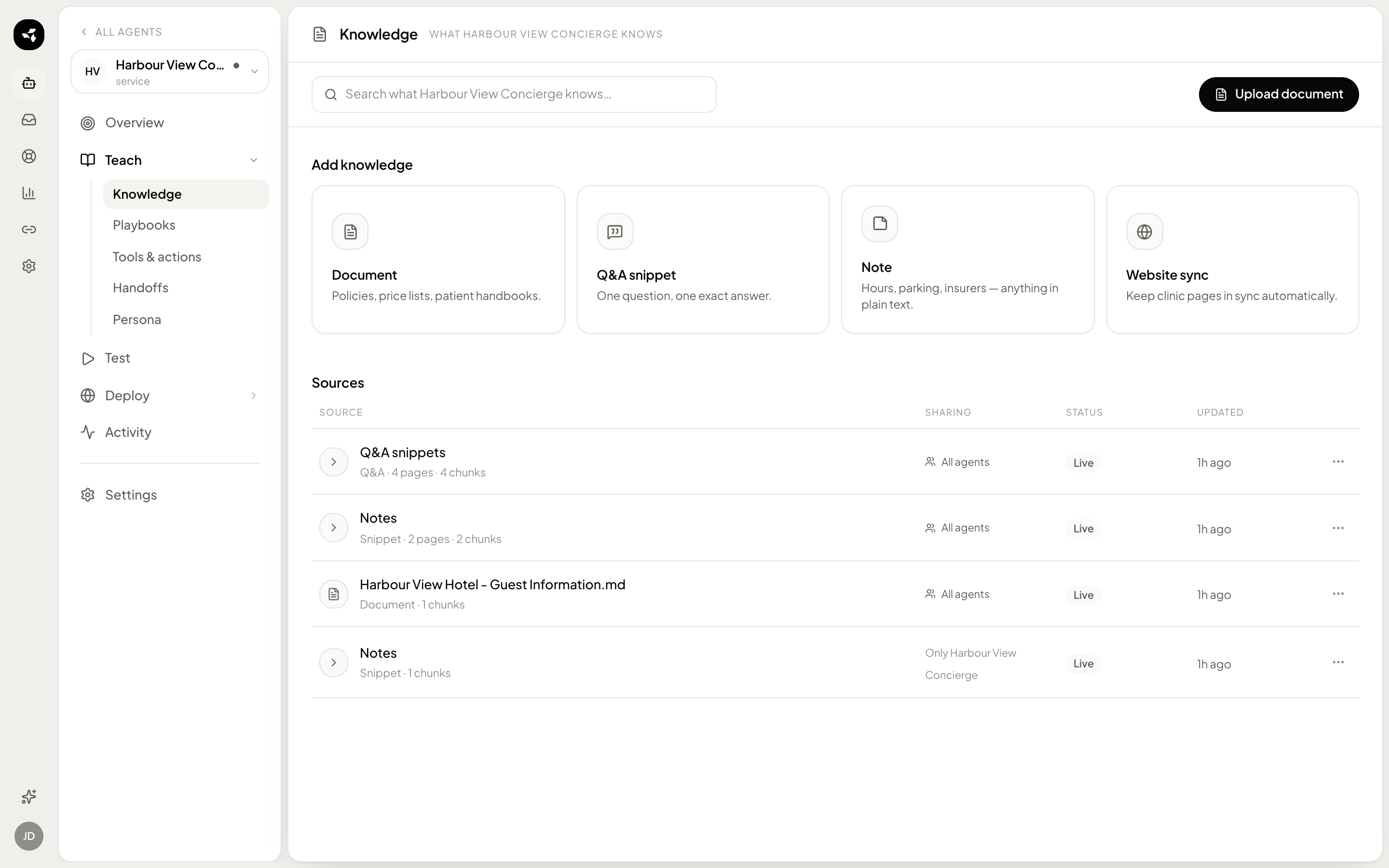
Open TeachKnowledge and choose how to add something. You can upload a document (PDF, Word, text, CSV or Markdown), sync your website so the agent reads your pages, or type a quick Q&A or note yourself. For a first try, a Q&A such as "What time is check-in?" with the answer "From 3pm" is plenty.
New knowledge shows Processing for a moment, then Live. From then on the agent can use it. See Knowledge overview and Add documents, Q&As and notes.
Try it yourself
Before anyone else talks to your agent, you should. Open Test and chat with it. Ask something your knowledge answers, such as when check-in starts, and check the reply is right. Then ask something it shouldn't know, and see how it copes.
Tests are safe. If the agent uses a tool that would change something in a connected system, the test holds the change back and shows you what it would have done.
To hear the agent on a call, open DeployVoice and use Voice testing. Your microphone stands in for the caller's phone. Adjust the persona or knowledge, then test again until you're happy. See Test in chat and Make a test call.
Switch it on
When the agent behaves the way you want, open its Settings and choose Publish. The status changes from Draft to Published, and the Agents list marks it Live.
From now on, every change you save reaches the agent's next conversation, so it's worth testing first. Playbooks are the exception: they keep a draft until you publish them. See Publish and go live.
Calls only reach published agents. To take real calls, a Manager points a number at the agent from DeployVoice. The Go-live checklist walks through it.
Tips for your first agent
- Start simple. Get the agent answering well from knowledge before you add anything else. Then add playbooks for step-by-step procedures and tools for actions in your systems.
- Use your own words. The more of your real content the agent has, the more its answers sound like your business. Paste in the replies your team already sends.
- Test, then save. On a live agent, saved changes take effect right away. Try changes in Test first so guests never meet a half-finished agent.
What to do next
- Write your first playbook: turn a procedure your team follows into steps the agent follows.
- Buy a number: get a phone number and point it at your agent.
- Add the web widget: put the agent on your website.
- Inbox overview: watch the conversations your agent handles.