
Test in chat
Chat with your agent as a customer would, using your playbook drafts, and watch each step it takes.
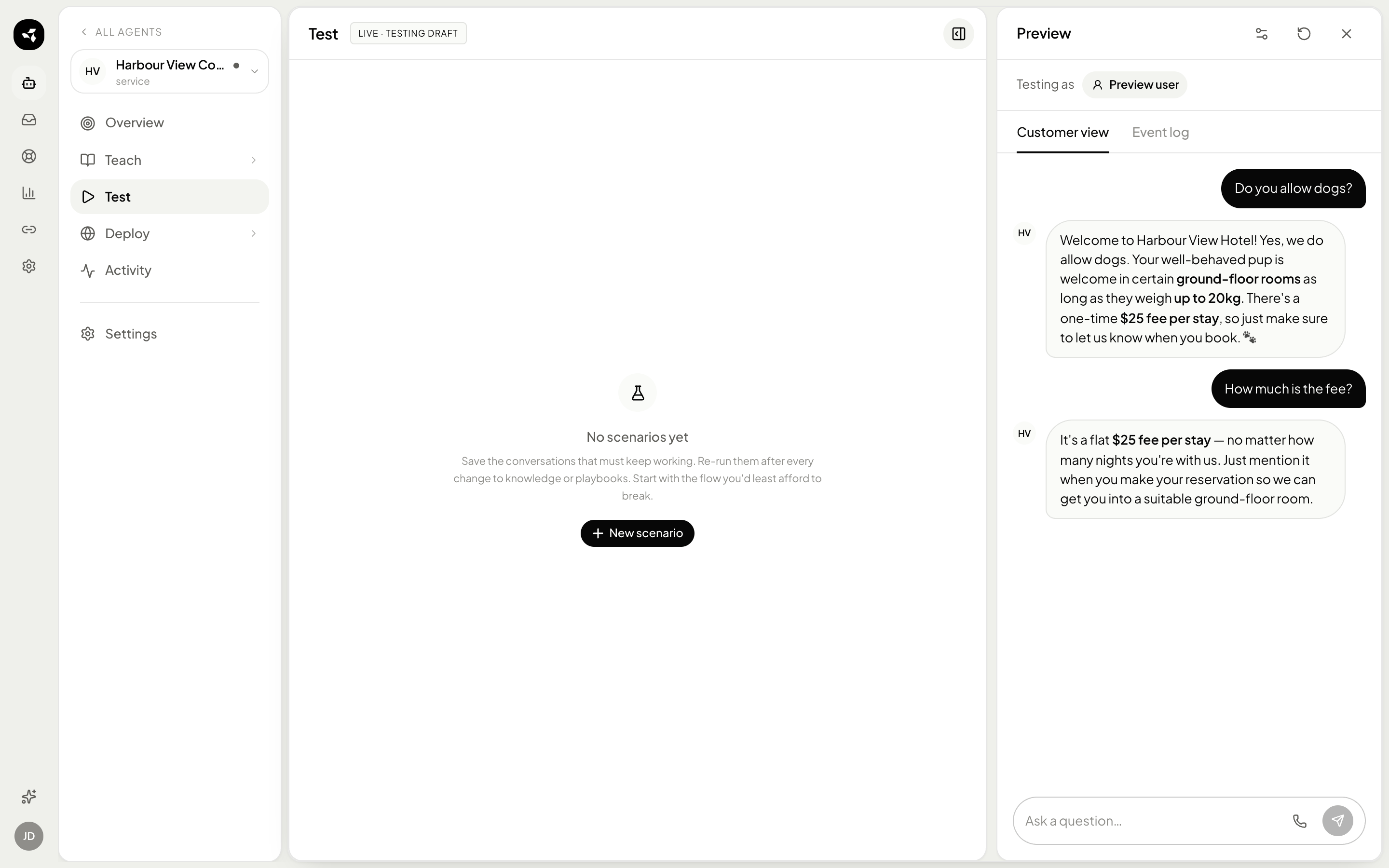
Each agent has a Test page. Its Preview panel is a chat with the agent. It runs your playbook drafts with the agent's saved settings, so you can try changes before you publish them. You need an agent first (see Create an agent).
Start a test chat
- Go to Agents in the main sidebar and open your agent.
- Choose Test in the agent's console. You can also choose Test call on the agent's Overview.
- In the Preview panel, type what a customer would say and send it.
- Choose Start over (the circular arrow) for a fresh conversation.
Imagine you run a small clinic and your agent books appointments. Type "I need to see a doctor on Friday" and send it. The agent replies as it would to a patient, using your playbook drafts, even ones you haven't published.
The panel tests as Preview user, a stand-in customer. Each conversation starts fresh, with no history, and stays apart from every other test and from real customers.
Check what you're testing
The badge next to the page title tells you what you're testing. Live · testing draft means the agent is published, and you are chatting with your drafts, not with what customers get. Draft means the agent isn't published yet.
To hide the panel, choose Hide preview. Choose Show preview in the page header to bring it back. The gear icon opens the agent's Settings.
Read the Event log
- Go to the agent's Test page and send at least one message.
- Choose Event log to see the steps the agent took.
- Choose Customer view to go back to the chat.
The log fills in once the agent replies for the first time, and the chat keeps running while you read it. Each line has a time since the first step, a label, and what it applies to. Step names match the numbers in the playbook editor.
The labels are:
- started: the agent entered a playbook.
- step: the agent moved to a step.
- calling: the agent called a tool.
- result: the tool answered.
- decided: a condition was checked, with yes or no.
- done: the agent finished a step.
- guard: a guard's condition was met, so the guard stepped in.
- collected: the agent saved a detail from the customer.
- switched: the agent moved to another playbook.
- resumed: the agent went back to a playbook it had paused.
- ended: the playbook finished, with its outcome.
If the clinic agent skipped the booking step, the log shows whether a decided line sent it down the other branch. For a deeper read of each entry, see Troubleshoot playbooks with traces.
What runs in a test chat
The chat runs the real agent with the real model. It uses your saved playbook drafts, the persona and settings you last saved, and whatever knowledge is indexed now. Settings have no draft, so what you test is what customers get.
Reads, such as looking up an order, run for real. Writes, such as cancelling a booking, are held back, and the agent reports what it would have done. Handoffs are off, so no escalation opens and no one is notified. If a tool asks the customer to confirm before it acts, the test asks too, then reports what it would have done.
The phone icon next to the message box starts a voice test call in the same thread. A call isn't a dry run: it uses your published playbooks, runs writes for real. Its handoffs are never real: the line is spoken, but nothing is queued or notified. The Event log follows only the typed chat. See Make a test call.
Find test chats later
Test chats appear in the Inbox as Test chat, with the channel Preview chat. They don't count as customer conversations. See Work conversations.
FAQs
Do I need to publish before I test?
No. The chat runs your saved playbook drafts, so you can test before publishing.
Will a test chat change my real bookings or records?
No. Lookups run for real, but anything that writes is held back. The agent tells you what it would have done.
Why is the Event log empty?
It fills in once the agent replies for the first time. Send a message and it appears.
Are test chats billed as customer conversations?
No. The panel says "Previews aren't billed as customer conversations."