
Troubleshoot playbooks with traces
Follow a test conversation step by step to see what the agent did and why.
A trace is the list of what happened inside a playbook during a conversation: which step ran, what the agent collected, which tools it called and how they came back, and which way each condition went. When a run surprises you, the trace tells you where it turned.
Where to find a trace
In the playbook editor, open the preview and stay on Dry run. The trace builds under the chat as you talk. You can also open the agent's Test tab and use the Event log beside the chat. See Test in chat.
Traces show for test conversations. For a real conversation, open it in Activity and read the Transcript and Case tabs. See Activity and automation runs.
How to read a trace
Entries run top to bottom with the time since the playbook started, like +4.2s. Steps are named the way the editor numbers them, with their words, like "Step 2a · Apologise and offer a refund". The entries mean:
- started: the agent started the playbook.
- step: the conversation moved to this step.
- collected: the agent stored a value, like an email address.
- calling: the agent called a tool at this step.
- result: how the tool call came back.
- decided: a condition written in words, with the agent's yes or no.
- done: the agent finished a step, with its reason.
- guard: a rule that applies across the agent stepped in.
- switched: the agent left for another playbook because the customer wanted something else.
- resumed: the agent came back to this playbook.
- ended: the playbook finished, and how.
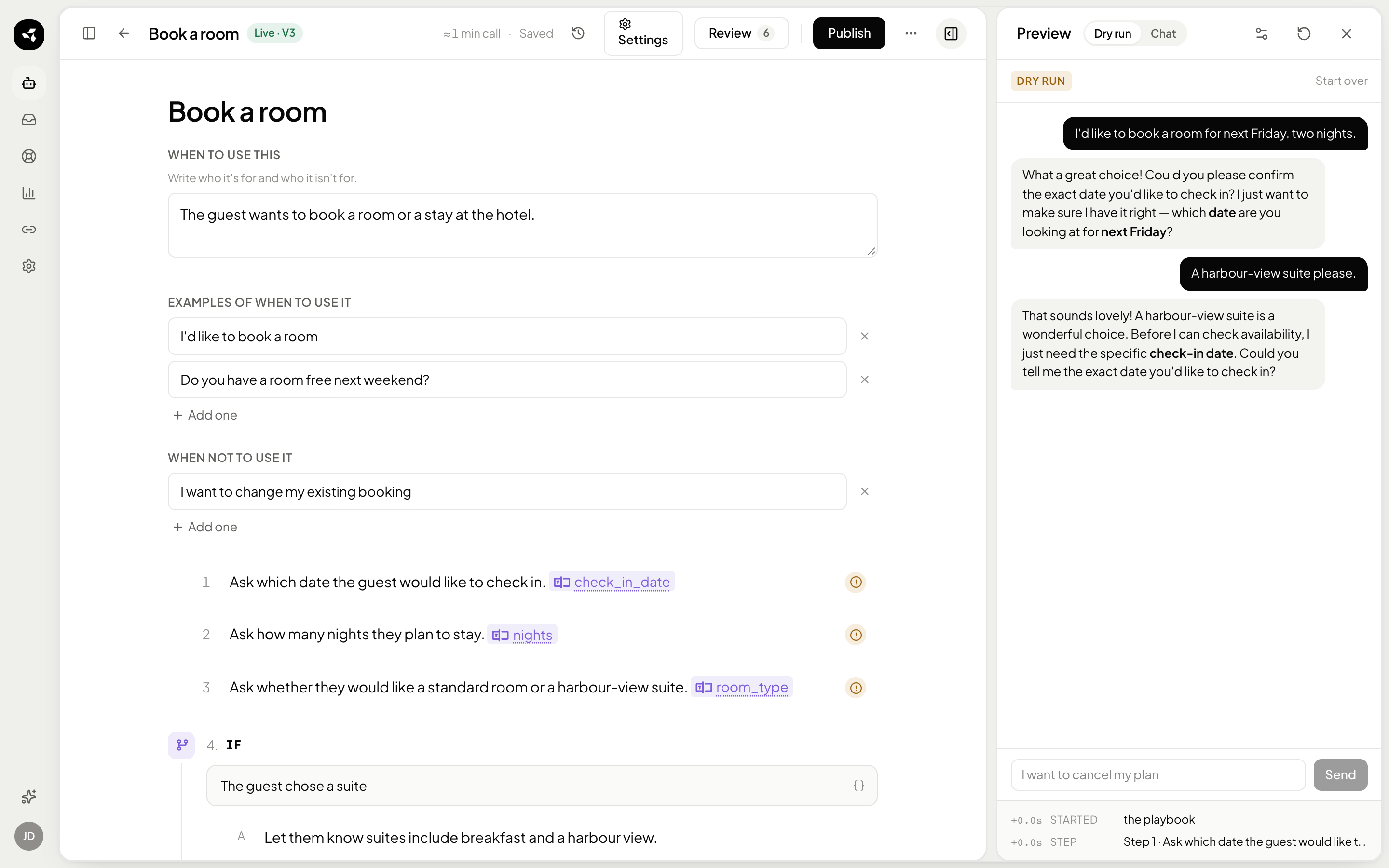
Start by finding the first entry that looks wrong. Most problems start there, and what follows is fallout.
My playbook never starts
You say what a customer would say and the trace has no started entry.
- When to use this is too narrow or too vague.
- The examples don't sound like what customers say.
- A When not to use it example matches too closely.
Tighten When to use this, add real phrases under Examples of when to use it, and check the "when not" list. See Write steps.
The agent never asks for something
A value shows no collected entry.
- The question in the step isn't clear.
- The step doesn't use Collect for the value, so nothing remembers it.
Make the question explicit, and add a Collect chip. See Use mentions.
A condition goes the wrong way
A decided entry shows yes where it should be no, or the reverse.
- A condition in words is too loose.
- The thing it depends on hasn't been said yet in the conversation.
Reword the condition, or switch it to an exact rule if it depends on a value or a tool result. See Add conditions.
A tool call failed
A result shows the call failed or timed out.
- The tool is wrong or is offline.
- The input the tool needed wasn't collected.
Check the tool and run it on its own. See Test a tool and set it live.
The agent wandered off to something else
You see switched before the playbook finished.
- The customer asked for something else, and the agent switched playbook.
Turn off switching in Settings to keep the agent here until it finishes. See Settings and review.
I can't publish
Publish is greyed out, or you see "Not ready to publish".
- Changes are unsaved.
- Something under Must fix before publishing in Review is open, such as a missing When to use this, no steps, or a tool that isn't live.
Wait for Saved, open Review, and fix what's listed. See Publish and versions.
Fix and test again
Fix the step, choose Start over in Dry run, and run it again until the trace takes the path you expect. Then publish.
Lookups in a dry run run for real, so the results you see are real. Tools that change something don't run. Editing the playbook restarts the dry run so you're always testing what you just wrote.