
Publish and versions
Ship a draft to customers, edit a live playbook safely, compare versions and bring an old one back.
You always edit a draft, and customers always get the published version. Publishing freezes your draft as a numbered version that new conversations run. Each version keeps a short note on what changed, so you can always see how a procedure got to where it is.
How drafts and versions work
The draft is for you and your team, in the editor and in Dry run. It saves as you type. The published version is what customers get, from the moment you publish. A conversation keeps the version it started on, even if you publish again mid-call.
The status beside the playbook name tells you where you are. Live · v3 means version 3 is live and the draft matches it. Live · v3 · unpublished changes means the draft has edits customers don't have yet.
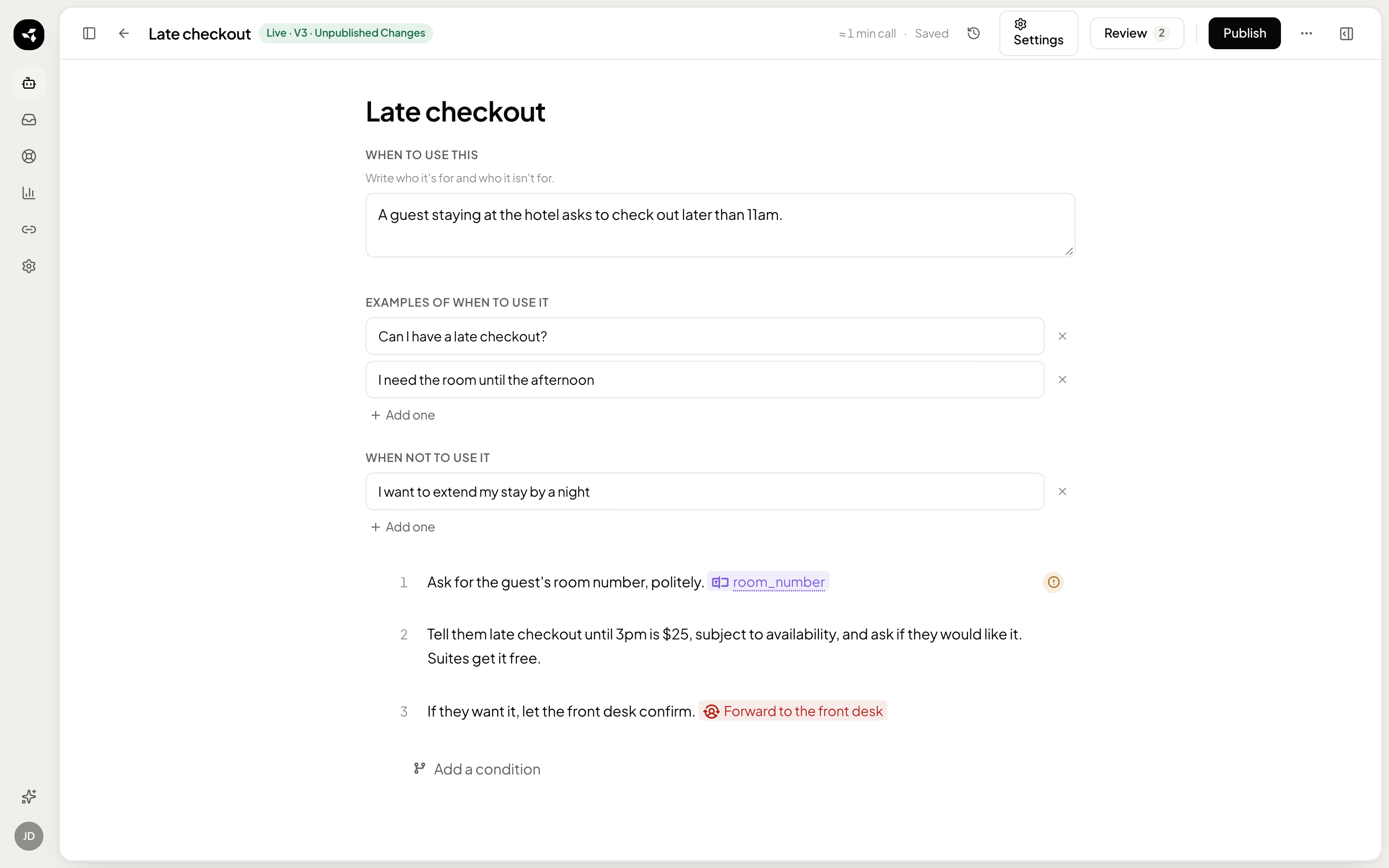
Publish a draft
- Go to TeachPlaybooks and open the playbook.
- Wait until the save state reads Saved, because Publish stays off while changes are unsaved.
- Open Review and fix everything under Must fix before publishing.
- Choose Publish, or press
⌘↵orCtrl+Enter. - Under What changed?, write a short note for your team, like "Added a refund check". A note is required.
- Choose Publish again.
You'll see "Published version N". New conversations use it from now on. Conversations already in progress finish on the version they started with.
Publishing doesn't run any tests, so try your changes in Dry run first. See Try a playbook draft.
What blocks publishing
Only problems that stop the playbook from running block it. These are the ones to fix first:
- No When to use this sentence.
- No steps.
- A tool that isn't live yet, or no longer exists.
- A handoff routine that no longer exists.
- A condition that can't be read.
Everything else is a note under Worth a look in Review, such as a blank like [TBD], a value used before anything collects it, a step nothing leads to, a step that may need a tool but has none, or a tool given an input it doesn't take. A tool has to be live before a playbook that uses it can publish. If a publish is refused, you'll see "Not ready to publish" and Review opens on what to fix.
Change a live playbook safely
- Go to TeachPlaybooks and open the playbook. You are editing the draft, and live conversations are untouched.
- Make your changes and wait for the save state to read Saved.
- Open Review and fix anything under Must fix before publishing.
- Open the preview, stay on Dry run, and talk through the parts you changed as a customer would.
- Choose Publish, say what changed, and publish.
Dry run uses your draft. Lookups run for real, but nothing is changed. After publishing, open History to confirm: the new version is at the top, marked live.
Compare versions
- Choose the History button in the top bar. Choose it again to go back to the document.
- Select a row.
The Draft row shows your draft compared with the newest published version, so check it before you publish. It's a quick way to make sure nothing slipped in by accident. A version row, like v3, shows that version compared with the one before it, with its note and when it was published. The live one is marked live.
Changed words are highlighted within each step. A step whose tools, values or settings changed reads configuration changed.
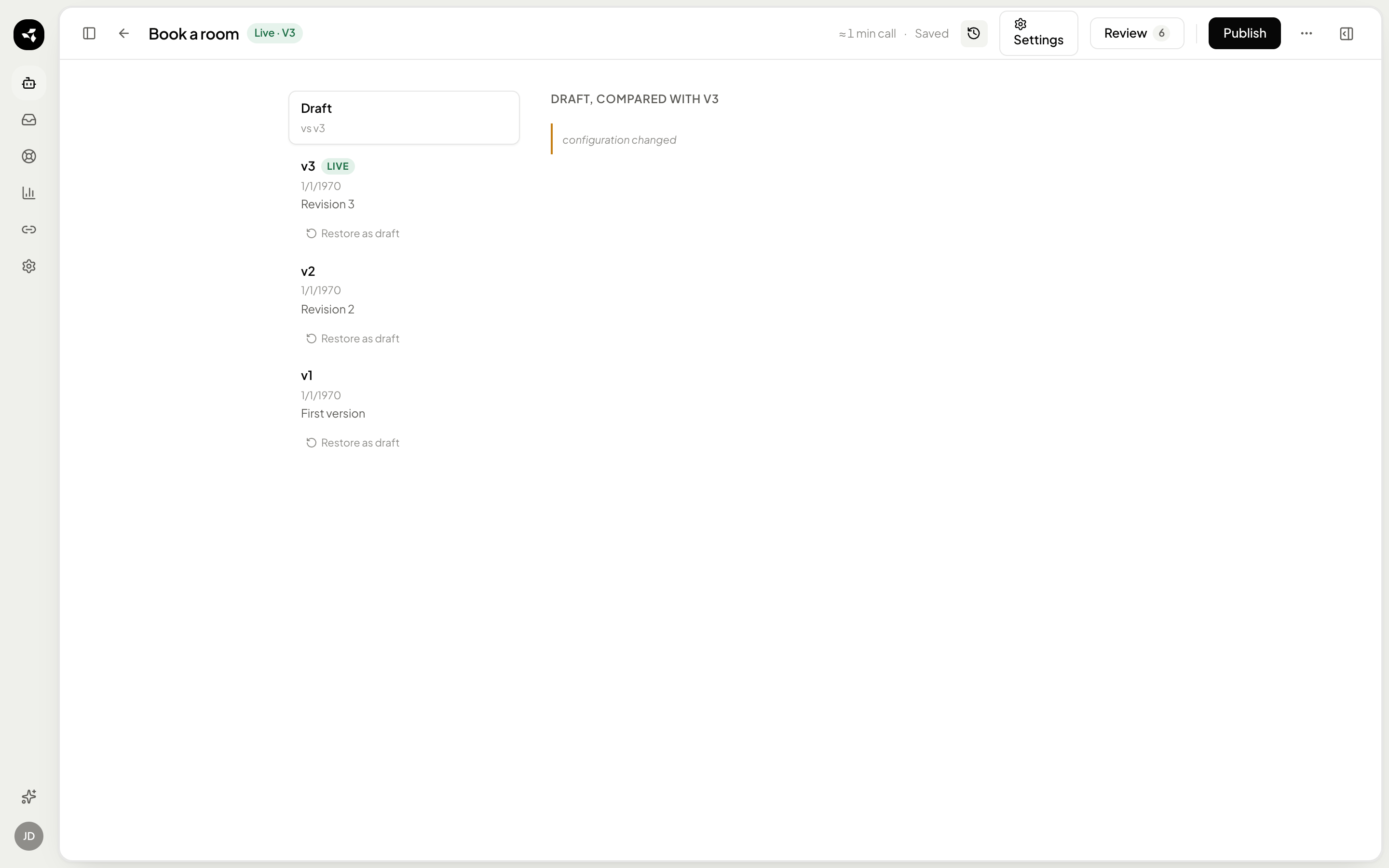
Bring back an old version
- In History, find the version you want.
- Choose Restore as draft, then Restore as draft again to confirm.
- Check the draft, then choose Publish.
The restored version goes live as a new version number, so the history stays in order. Restoring never changes what's live by itself. Until you publish, customers keep the current version.
Discard, pause or remove
- Discard changes: open the More menu and choose Discard changes. Your draft goes back to the live version, and the changes are lost.
- Pause: open the More menu and choose Pause to stop new conversations from starting a live playbook. Choose Resume to turn it back on. Publishing a paused playbook also makes it live again. Your draft and versions stay as they are.
- Remove: go back to the list, open the row's menu and choose Remove. Conversations stop starting it, and its versions are kept.
See who changed what
Publishes and restores are recorded in Audit logs, so a Manager can see who put each version live and when.
FAQs
Does publishing interrupt a call in progress?
No. A conversation keeps the version it started on, and new conversations use the new one.
Is a note required when I publish?
Yes. Write a short note under What changed?.
Does restoring an old version change what's live?
No. Restore as draft copies the version into your draft. Nothing changes for customers until you publish.
Can I stop a playbook without deleting it?
Yes. Choose Pause from the More menu, and Resume when you're ready.
Who can publish?
Anyone on your team can create, edit, publish and restore playbooks. See Roles and permissions.