
Build an agent with Copilot
Describe the agent you want, review what Copilot proposes, and approve each piece until the agent is ready to test.
You can build an agent, a playbook and a handoff routine without filling in a form, by describing what you want and approving what Copilot drafts. This page walks through a hotel front desk agent from first message to a finished draft. Copilot must be turned on for your workspace. It works within your role (see Roles and permissions).
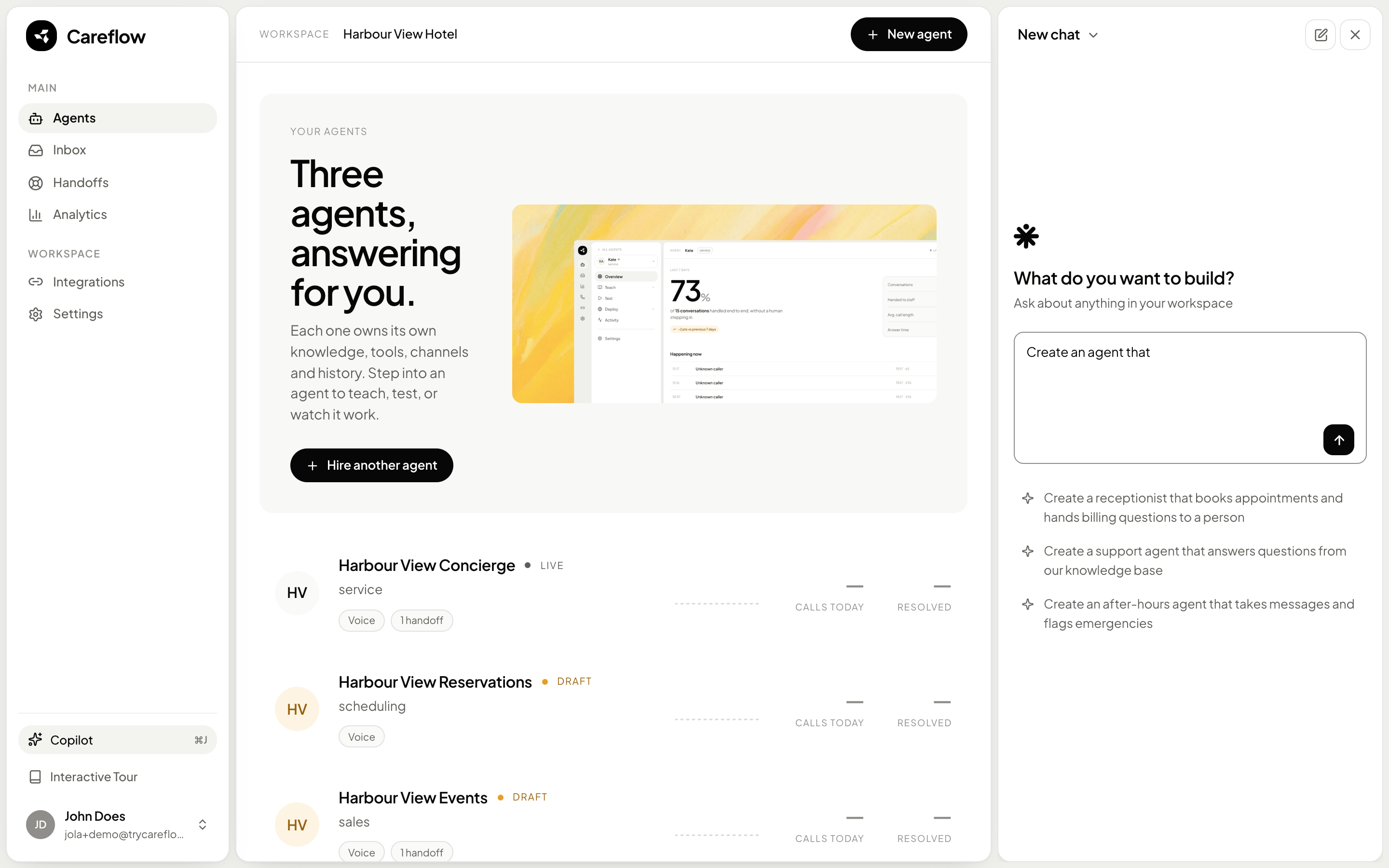
Open Copilot on a new agent
- Go to Agents.
- Choose New agent.
- Copilot opens on a new conversation, titled What do you want to build?
- Type your description, or pick one of the starters.
The starters are examples such as a receptionist that books appointments and hands billing questions to a person, a support agent that answers questions from your knowledge base, or an after-hours agent that takes messages and flags emergencies.
You can also open Copilot from anywhere with ⌘J (Ctrl+J on Windows), or by choosing Copilot in the sidebar.
Describe what you want
Write it the way you would brief a new colleague. For example: "Create an agent for a boutique hotel that answers questions about rooms, breakfast and check-in, and hands complaints to a person."
Copilot first looks at what you already have, and may ask a question or two. Answer in plain words. A clear, specific description gives you a better first draft than a vague one.
Review each card
Copilot proposes the change as a card, with a title like "Do you want to create the assistant…?" Each card says what it would do and lists anything that would stop it from working.
- Choose Approve to make the change. You can also press ⌘↵.
- Choose Reject to turn it down. To get a different version, tell Copilot in the chat what to change.
- Where a Show me first link appears, choose it to look at the proposal before you decide.
- If there are several cards, use the arrows to move between them.
- A delete asks you to type the name first.
After each approval Copilot carries on with the next piece. For a new agent that is usually its playbook and a handoff routine, each attached to the agent it just made. Approve them in turn, or reject any you would rather write yourself.
Check what Copilot built
Open the new agent from Agents. It starts as a draft, so nothing you do reaches customers yet. A playbook Copilot wrote is saved as a draft version too, and live conversations keep using the published version until you publish.
Before going further:
- Open TeachPlaybooks and read the steps in plain words. Edit anything that doesn't sound like your hotel.
- Open TeachHandoffs and check the routine reaches a person who is staffed.
- Add your real content under TeachKnowledge. Copilot can look at knowledge but it doesn't write it. See Add documents, Q&As and notes.
- Open Test and chat with the agent. See Test in chat.
If a card goes stale
If the same record changes somewhere else before you approve, for example in another tab, the card says so: "That changed since it was drafted. Draft it again?" Choose Draft it again and Copilot rereads the record and proposes the change on top of what is there now. Choose Leave it to keep things as they are.
Ask Copilot for changes later
Copilot isn't only for the first build. Open it on an agent's page and say what you want changed, such as "make the greeting shorter" or "add a step that asks for the guest's room number." It drafts the edit, and you approve it as before. Tools work the same way. A tool Copilot drafts doesn't connect to any agent's calls until it passes a test, and credentials are never drafted, so you add those in the tool editor. See Tools overview.
When you're ready, publish
When the agent behaves the way you want, open its Settings and choose Publish. See Publish and go live and the Go-live checklist.
FAQs
Why can't I see Copilot?
Copilot appears only when it is turned on for your workspace. Without it, New agent opens the New assistant dialog instead. See Create an agent.
Does Copilot change anything without asking?
No. Nothing changes until you approve a card.
Can Copilot do more than my role allows?
No. It acts as you, so it reads and changes only what your role allows.
Does a playbook Copilot writes go live straight away?
No. It is saved as a draft version. Nothing reaches live conversations until you publish it.