
Write your first playbook
Build a hotel booking-cancellation playbook, try it in a dry run, and publish it so real conversations can use it.
In this guide you write a playbook for a small hotel: a guest wants to cancel a booking. It takes the playbook from a blank page to a published version. Pick any task your team handles the same way every time and follow along with that instead if you prefer.
You need an agent to add the playbook to. See Create an agent. If a step checks or changes something in a system, set that system up as a tool and set it live first. In this example we assume two tools exist, Look up booking and Cancel booking. See Tools overview.
Create the playbook
- Go to the agent console and choose Teach, then Playbooks.
- Choose New playbook.
- Type a name the way your team says it, for example
Cancel a booking. - Choose Create.
The editor opens with one empty step. Your work saves on its own, and the save state beside the title reads Saved once your changes are stored.
Say when it applies
The header decides whether the playbook ever starts, so fill it in first.
- Under When to use this, write who the playbook is for and who it isn't for. For example: "Guests who want to cancel a booking they already have. Not for changing dates or rooms."
- Under Examples of when to use it, add two or three things guests actually say, like "I need to cancel my stay". Press
Enterto add another. - Under When not to use it, add anything that sounds close but belongs elsewhere, like "Can I move my booking to next week?".
The agent reads these to decide whether to start the playbook, so be concrete. Without When to use this the playbook can't publish.
Write the steps
Write the first step in the empty line, for example "Ask for the booking reference or the email used to book." Press Enter at the end of a step to start the next one.
Where a step needs to check a system, type @ and pick the tool. Where it needs to remember a detail, type @ and choose Collect. Use mentions explains each option.
Specific steps work best. Instead of this:
Help guests cancel.Write this:
1. Ask for the booking reference or the email used to book.
2. Look up the booking with @Look up booking.
3. Tell them the dates and the room, and ask them to confirm they want to cancel.
4. Cancel it with @Cancel booking.
5. Confirm that the cancellation went through.
A tool that changes something, like a cancellation, always asks the customer to confirm first. You don't need to write that into the step.
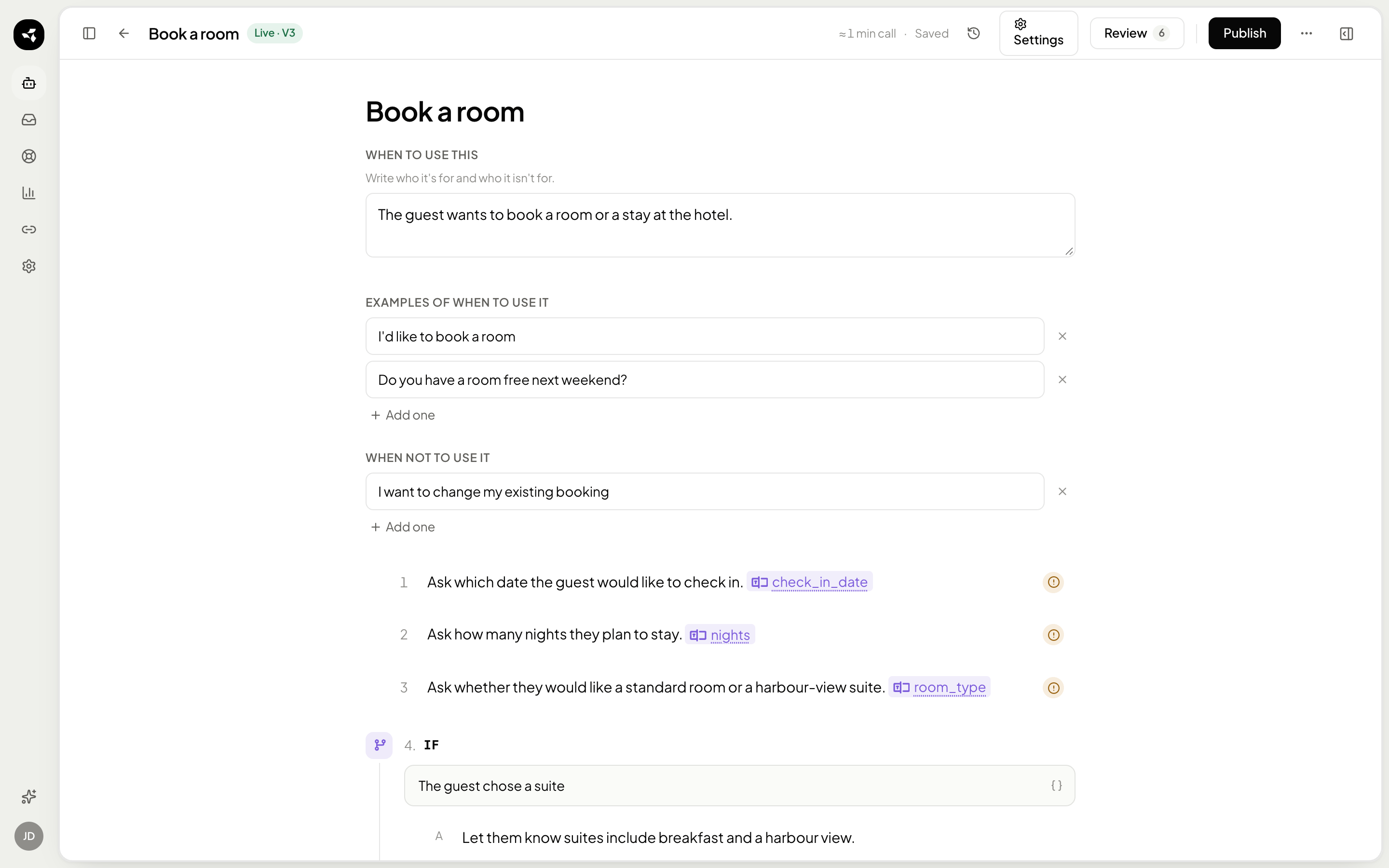
Handle the case where nothing is found
Guests mistype references. Add a condition after the lookup step so the playbook has somewhere to go.
- Choose Add a condition at the bottom of the document.
- Switch the condition to an exact rule and pick the lookup's result from Tool results, for example
look_up_booking.result == "nothing found". - Inside the block, write a step such as "Read the reference back and ask them to check it."
See Add conditions for the two ways to write a condition.
Check Review
Choose Review in the top bar. Anything under Must fix before publishing has to be dealt with, such as a tool that isn't live yet. Anything under Worth a look is a suggestion that never blocks publishing. With nothing listed, Review reads "Nothing to fix. This playbook looks ready."
Try it
- Open the preview with the panel button at the top right. Its tooltip reads Try this playbook.
- Stay on Dry run.
- Say something a guest would say, and talk the procedure through.
- Try the unhappy path too, like a reference that doesn't match anything.
In a dry run, lookups run for real but tools that change something are held back, so you can test a cancellation safely. If a run surprises you, read the trace.
Publish it
- Choose Publish.
- Write a short note under What changed?.
- Choose Publish again.
You'll see "Published version 1". New conversations use the playbook from now on.
It stays off while changes are unsaved and while something under Must fix before publishing in Review is open. Hover it to see how many problems are left.
What to do next
Ship the main path plus one fallback first. Watch a few runs, then add conditions for the cases guests actually hit.
- Write steps: keys, suggestions and reordering.
- Build a playbook with Copilot: let Copilot write the first draft next time.
- Tips for writing playbooks: habits that keep playbooks reliable.
- Publish and versions: compare versions and go back.