
Write steps
Write a procedure as numbered sentences in the playbook editor, with keys and suggestions that keep you moving.
Steps are the core of a playbook: numbered sentences that say what to ask, what to check and what to do. The editor is a document that reads like a procedure your team could review.
Open the editor and find your way around
- Go to the agent console and choose Teach, then Playbooks.
- Open a playbook from the list, or choose New playbook.
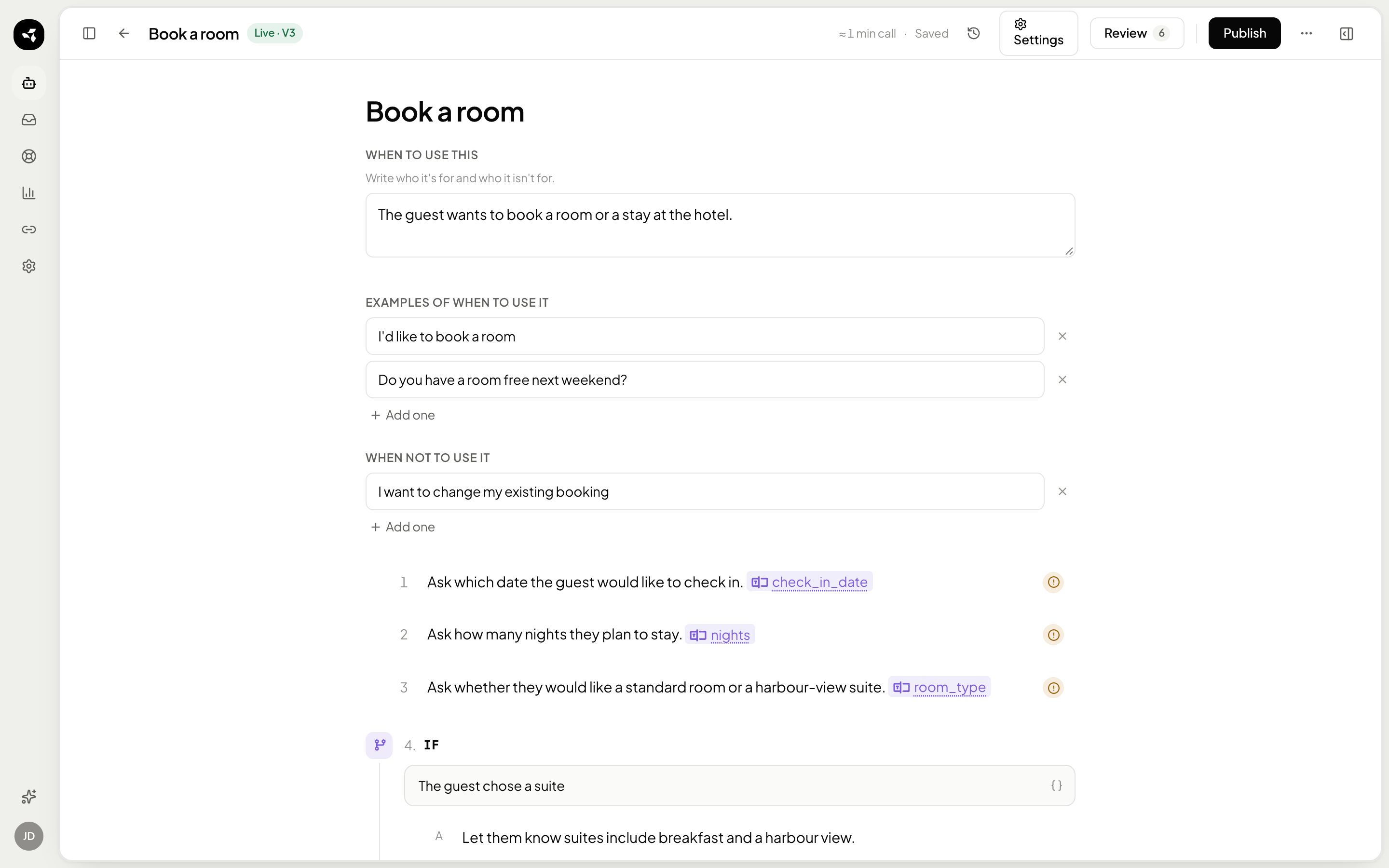
The agent sidebar folds away to give the document room. The page has three areas: the top bar, the header, and the steps.
The top bar holds the playbook name and its status, for example Live · v3 · unpublished changes. Beside it you see an estimated call length (≈ 2 min call) and the save state. On the right are the History button, Settings, Review, Publish and the preview button. Once the playbook is live, a More menu appears too.
Fill in the header first
The header sits below the top bar and decides whether the playbook ever starts.
- Under When to use this, say who the playbook is for and who it isn't for.
- Under Examples of when to use it, add things customers say that should start it.
- Under When not to use it, add things that sound similar but belong to another playbook or to a person.
The agent is told the "when not" examples are not a match. A clinic might write "Patients who want to book a new appointment. Not for rescheduling or for medical questions." Without When to use this, the playbook can't publish.
Write the steps
- Click into the first step under the header and type.
- Press
Enterat the end of a step to start a new one. - Press
Shift+Enterto add a line break inside a step.
Write one job per step, in plain language. "Ask for the patient's date of birth" is a good step. "Sort out the appointment" is not, because the agent has to guess what you meant.
Under the numbered steps and any IF blocks, Add a condition sits at the bottom. See Add conditions.
Keys that help
Enterat the end of a step starts a new step.Shift+Enteradds a line break inside the step.Backspacein an empty step removes it.Alt+↑or↓moves the step up or down.@opens the mentions menu. See Use mentions.⌘SorCtrl+Ssaves now.⌘Zoutside a sentence undoes a removed or moved step.
Saving happens on its own, so the shortcut is only for when you want to be sure.
Add, move and remove steps
- Hover between two steps and choose Add a step here.
- Click the handle beside a step to drag it to a new place.
- Click the same handle to choose Duplicate step or Delete step.
Duplicating is handy when two steps are nearly the same, such as asking for an email and asking for a phone number.
Use suggestions
As you write, the editor may suggest the rest of a sentence in dimmed text. Press Tab to accept it or Esc to dismiss it.
Suggestions never fill in your policy numbers. A refund window or discount comes back as a blank like [___] or [TBD], and Tab jumps to the next blank. Blanks show up in Review until you fill them, so nothing slips through unnoticed. See Settings and review.
Write steps that work
Specific steps make a reliable agent. Instead of this:
Help guests check their booking status.Write this:
1. Ask for the booking reference or the email used to book.
2. Look up the booking before saying anything about its status.
3. Share the room, the dates and the current status directly.
Your work saves as you go. When the steps read the way you would brief a colleague, try them in Dry run. See Try a playbook draft.
FAQs
How long can a playbook be?
The editor shows an estimated call length beside the name. A very long playbook is flagged under Worth a look in Review, so consider splitting it into smaller playbooks.
Do I have to save?
No. Changes save as you type. The save state beside the title reads Saved once they're stored.
Can I undo a step I deleted?
Yes. Press ⌘Z or Ctrl+Z while the cursor is outside a sentence to undo a removed or moved step.
Why is there a blank like [TBD] in my step?
The editor suggested a sentence but left out a number such as a refund window, because it never fills in your policy. Press Tab to jump to the next blank and type the real value.